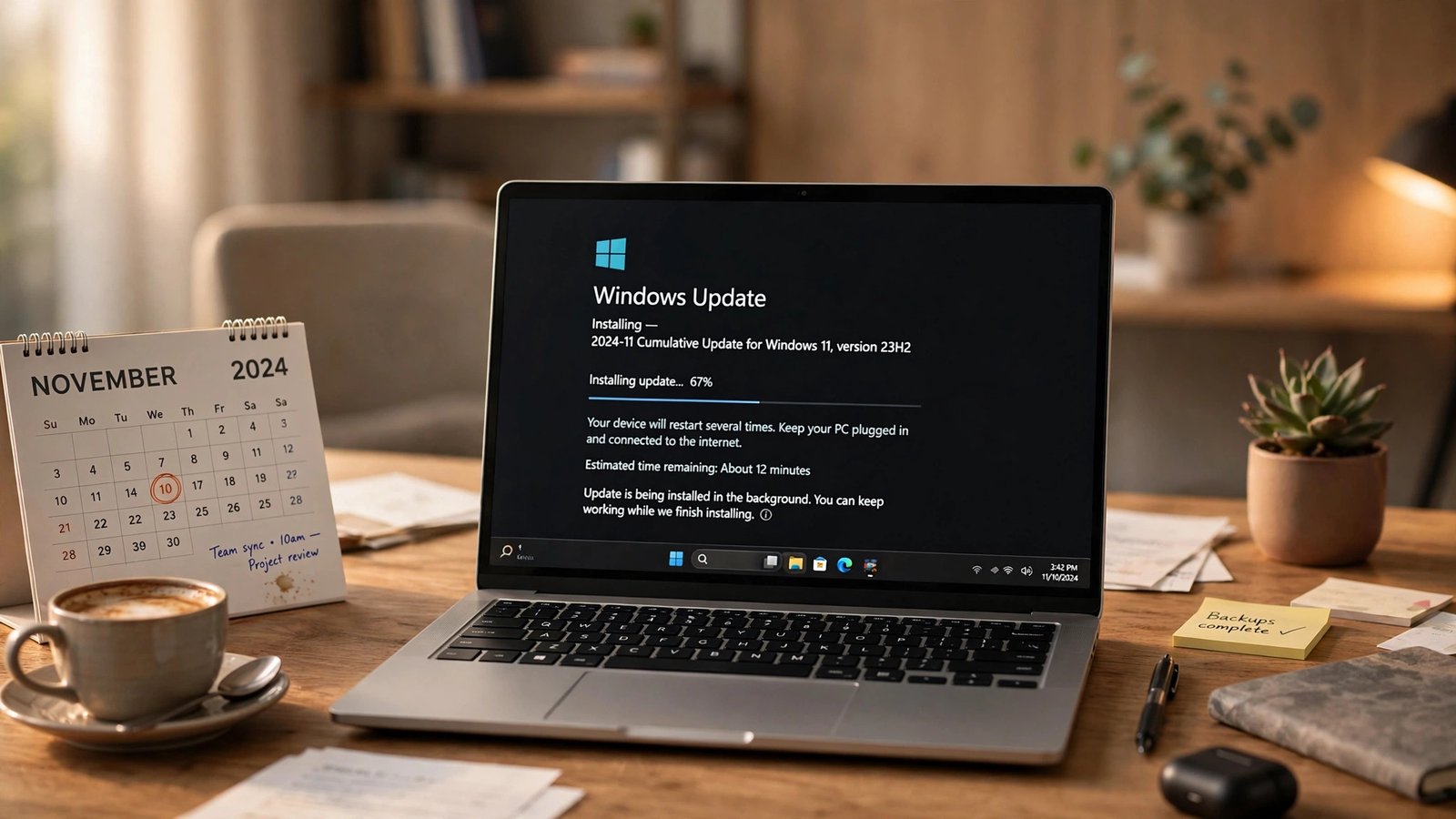
Today, November 10, 2026, is the last day Windows 11 version 23H2 gets a security update on Enterprise, Education, IoT Enterprise, and Enterprise multi-session PCs. The November Patch Tuesday update is the final one Microsoft will ship for those editions. After today, a PC still running 23H2 Enterprise or Education keeps working, but it stops receiving the monthly fixes that close newly discovered security holes.
Nothing breaks at midnight. Your computers will boot tomorrow morning exactly as they did today. What changes is quieter: from the December Patch Tuesday onward, every new Windows vulnerability Microsoft discloses stays open on those machines. If you manage PCs for a small business, a school, or a nonprofit, today is the day to find every 23H2 machine you still have and get it moving to a supported version.
Here’s the twist: if your home PC runs Windows 11 23H2, this deadline already passed for you — a full year ago. The Home and Pro editions of the very same version stopped getting updates on November 11, 2025. Same version number, completely different fate. The only thing that decides whether your PC gets its last update today or got it twelve months ago is the edition on the license.
What ends today, and what doesn’t
Microsoft’s message center put it plainly in a reminder posted October 9, 2026: “The November 2026 Windows security update will be the last update available for these editions.” The editions in question are Windows 11 version 23H2 Enterprise, Education, IoT Enterprise, and Enterprise multi-session. Microsoft’s lifecycle page for Windows 11 Enterprise and Education lists the end date as 11/11/2026 at 6:59:59 AM Pacific Time — the same moment expressed the other way around, since the servicing window closes as November 10 ends in the United States. The release health page for 23H2 repeats the November 10 date.
So what actually stops? Monthly security updates, quality updates, non-security preview updates, and technical support for that version. What doesn’t stop? The PC itself. Windows doesn’t deactivate, files don’t disappear, and your apps keep running. The 23H2 release health page is retired December 10, 2026.
Version 23H2 shipped on October 31, 2023, and it’s still common in offices and classrooms — a stable release that never gave anyone a reason to rush off it. That stability is now the trap: the version that never gave you trouble is the one most likely to be forgotten on a shelf, in a lab, or on a reception desk.
Why the same version number had two different endings
If you’ve ever wondered why your home PC lost 23H2 support a year before your work PC, the answer is Microsoft’s servicing model. Every annual Windows 11 feature update gets its own support clock, and the clock runs at a different speed depending on the edition. Home and Pro editions get 24 months of servicing per version. Enterprise and Education editions get 36 months. Version 23H2 launched October 31, 2023, so the math writes itself: 24 months landed in November 2025 for Home and Pro, and 36 months lands in November 2026 for Enterprise and Education.
This isn’t a quirk of 23H2 — it’s the pattern for every Windows 11 version. Version 24H2 Home and Pro ended October 13, 2026, just last month, while 24H2 Enterprise and Education keep going until October 12, 2027. The extra year exists because businesses and schools can’t re-test and redeploy their whole fleet every two years the way a home user can click “update” on a Saturday.
Check your edition, not just your version
Before you plan anything, find out what you’re actually running. This takes about thirty seconds per PC. Do it on every machine you look after, including the ones you’re sure about.
The Settings check (the one to use first)
- Open Settings.
- Go to System, then About.
- Look at two lines: Edition and Version.
Edition is the line people skip, and it’s the line that decides your deadline. If it says Enterprise or Education and the version says 23H2, today is your last update. If it says Pro and the version says 23H2, your last update was November 11, 2025 — you’re already a year past support, and that machine should be the higher priority.
While you’re on that About screen, note the OS build number too. Windows 11 23H2 machines carry builds in the 22631 family — for example, 22631.7654, the build from the October 26, 2026 update. If your build starts with 22631, you’re on 23H2 whatever the version line says. Builds starting with 26100 are 24H2, 26200 is 25H2, and 26300 is 26H2. The build number is the most reliable identifier you’ve got, because it can’t be confused by a friendly version name.
The winver check (fastest on a machine you’re already using)
Press the Windows key + R, type winver, and press Enter. A small window pops up showing the version and the OS build in one line — something like “Version 23H2 (OS Build 22631.7654).” It doesn’t show the edition, so pair it with the Settings check when the edition is what you’re trying to confirm. But for a quick sweep of a row of desks, winver is the fastest way to sort the 23H2 machines from the rest.
The one-line check for a whole fleet
If you manage more than a handful of PCs, don’t walk to each one. On any Windows 11 PC, open PowerShell and run Get-ComputerInfo | Select-Object WindowsProductName, WindowsVersion, OsBuildNumber. That returns the edition, the version, and the build in one shot. If you use Microsoft Intune, filter your device inventory for build 22631 and you have your list.
Finally, confirm the November update installed: go to Settings > Windows Update > Update history and look for the November 2026 cumulative update. If a machine missed it, install it now, before you start the upgrade.
Every supported Windows 11 version, at a glance
Here’s where each version stands as of today, November 10, 2026. Dates come from Microsoft’s Windows 11 release information and lifecycle pages. Note that Microsoft’s lifecycle pages show Pacific Time timestamps, so some dates appear a day later there than on the release information pages — the Patch Tuesday dates below are the ones that matter for planning.
| Version | Build | Released | Home / Pro updates end | Enterprise / Education updates end |
|---|---|---|---|---|
| 23H2 | 22631 | Oct 31, 2023 | Nov 11, 2025 (ended) | Nov 10, 2026 (today) |
| 24H2 | 26100 | Oct 1, 2024 | Oct 13, 2026 (ended) | Oct 12, 2027 |
| 25H2 | 26200 | Sep 30, 2025 | Oct 10, 2028 | Oct 10, 2028 |
| 26H2 | 26300 | Sep 29, 2026 | Oct 10, 2028 | Oct 9, 2029 |
The table also explains why Microsoft’s earlier reminders told organizations to move to 25H2. Those reminders went out in August and September 2026, before 26H2 shipped on September 29. At the time, 25H2 was the newest supported version. Now that 26H2 is generally available, both are valid targets.
Which version should you move to: 25H2 or 26H2?
For most small businesses and schools, this is the one decision that matters, and it’s worth making deliberately rather than accepting whatever Windows Update offers first.
Choose 25H2 if you want the safest, most predictable move. It’s been in the field since September 30, 2025, so it’s had more than a year of real-world use. Enterprise and Education editions get updates until October 10, 2028 — nearly two years of breathing room. If your fleet includes older hardware, line-of-business apps that are slow to certify, or a small IT team that can’t afford surprises, 25H2 is the conservative pick, and conservative is a compliment when you’re patching a school’s computer lab the week before exams.
Choose 26H2 if you want the longest support window and you’re comfortable being early. It shipped September 29, 2026, as the Windows 11 2026 Update, and Enterprise and Education support runs to October 9, 2029 — a full year longer than 25H2. The catch is that it’s new, and early adopters always find the odd driver conflict or app quirk that didn’t show up in testing. If you go this route, pilot it on a handful of machines first and give it a week before you roll it out everywhere.
One technical detail affects your planning either way. Versions 24H2, 25H2, and 26H2 share the same servicing foundation, so a PC already on 24H2 or 25H2 moves to 26H2 through a small enablement package — a quick download that switches on features already delivered through monthly updates, finishing with a single restart. But 23H2 isn’t on that foundation. A 23H2 machine needs a full feature update to reach 25H2 or 26H2, which takes longer and is more likely to trip over a driver or a disk-space problem. That’s not a reason to avoid the upgrade — it’s a reason to test it on one machine before you push it to fifty.
The upgrade sequence: take the November update first, then upgrade
Here’s the order of operations, and the order matters more than it looks.
Step 1: Install the November 2026 update on every 23H2 machine. This is the last security update the version will ever get. A machine that goes into an upgrade with a year of missed patches is more likely to fail halfway through. Run Windows Update, confirm the November cumulative update installs cleanly, and reboot. If a machine can’t take the update — it errors out, or it rolls back — fix the update problem before you attempt the feature upgrade, not during it.
Step 2: Back up anything that matters. A feature update is designed to keep your files and apps, and it almost always does. For a business PC, back up user files to OneDrive, a network share, or an external drive before you start. For a shared lab PC, make sure nothing important lives only on the local desktop.
Step 3: Check disk space, drivers, and compatibility. A feature update needs roughly 20 GB of free space, and it’ll fail messily without it — run Disk Cleanup or Storage Sense first on machines that are close to full. Check that TPM 2.0 and Secure Boot are still enabled, since a BIOS update can occasionally flip Secure Boot off without anyone noticing. And if the machine runs specialist software — a point-of-sale system, lab equipment drivers, an old accounting package — check with the vendor that it’s certified for 25H2 or 26H2 before you upgrade the machine it lives on.
Step 4: Run the upgrade on a pilot group first. Pick three to five machines that represent your fleet: different hardware, different apps, different users. Upgrade those, let people use them for a few days, and watch for the issues that only show up in real use — a printer that stops responding, a VPN client that drops, an app that opens to a blank window. Fix what you find, then roll out to the rest in batches, not all at once.
Step 5: Confirm the new version and verify updates resume. After each upgrade, check Settings > System > About again. The version should now read 25H2 or 26H2, and Windows Update should show the machine checking in normally. If a machine reports an error after the upgrade, don’t assume it will sort itself out — a PC that can’t reach Windows Update after a feature update is a PC that will silently fall behind again.
For managed fleets, the same sequence applies through Intune, Windows Autopatch, or WSUS — target the feature update at a pilot ring, then widen it.
A small-business and school inventory checklist
The hardest part of this deadline isn’t the upgrade itself. It’s knowing which machines you have. Work through this list this week.
- List every Windows PC you own. Include the front desk, the back office, the lab, the library, the laptops in the cupboard, and the one in the conference room that only gets used for presentations. The machines you forget are the ones that stay on 23H2.
- Record version, edition, and build for each one. Settings > System > About gives you all three. Build 22631 means 23H2. Sort the list into three piles: already supported, 23H2 Enterprise/Education (deadline today), and 23H2 Home/Pro (deadline passed a year ago — these go first).
- Flag the special cases. Any PC running software that can’t move yet, any machine with a hardware problem, any device that’s off-site or with a remote worker. These need a plan of their own, not a spot in the general rollout.
- Check your shared and forgotten machines. Print servers, kiosk PCs, digital signage, the computer attached to the interactive whiteboard. These are almost always running whatever version they shipped with, and nobody checks them until they break.
- Confirm backups exist before you touch anything. If a PC’s files only exist on that PC, that’s a problem the upgrade didn’t create but will happily expose.
- Set a date for each batch and tell people. “Your computer will restart for about an hour on Thursday” beats a surprise reboot in the middle of a lesson or a client call.
- After the rollout, re-check the list. A migration isn’t done when you push the button. It’s done when every machine on the list shows a supported version and a recent update. Close the loop or the stragglers will find you later.
If you’re a school, one extra item: check the student and staff laptops that leave the building. A device that only connects to your network once a month won’t get the upgrade until it comes back.
What happens to a PC left unpatched
So what actually goes wrong if a 23H2 machine just stays where it is? In the short term, nothing visible. The risk accumulates silently, and it shows up in four ways.
New vulnerabilities stop getting fixed. Every Patch Tuesday, Microsoft publishes fixes for flaws found in Windows. From December onward, the fixes for 23H2 stop, but the disclosures don’t. Attackers read the same patch notes everyone else does, and a vulnerability fixed in 25H2 but left open in 23H2 becomes a known, documented way in.
Compliance and insurance start to notice. If your organization handles student records, health information, payment data, or client files, you almost certainly have an obligation — a policy, a contract, or a regulation — to keep systems patched. An auditor or an insurer asking “are all your systems on supported, patched versions?” doesn’t accept “the PC still works” as an answer.
None of this means a single unpatched PC will be breached tomorrow. It means the odds get worse every month, and the day something does go wrong, the explanation starts with a date you already knew: November 10, 2026.
What to do with PCs that can’t upgrade in time
Some machines won’t make the deadline, and pretending otherwise doesn’t help. Maybe the hardware is too old, maybe a critical app isn’t certified for 25H2 or 26H2 yet, or maybe you simply found the machines too late. Here’s how to handle the stragglers without leaving them exposed.
First, get them the November update. That final patch is the best state a 23H2 machine will ever be in, and every machine should have it, even the ones you plan to replace. Second, isolate them. A PC that can’t be patched shouldn’t sit on the same open network as everything else. If you can, move it to a restricted network segment, block its internet access except for what its job requires, and turn off any services it doesn’t need.
Third, put a date on it. “We’ll get to it eventually” is how machines stay on dead versions for two years. Write down the reason the machine can’t move, the date you’ll revisit it, and what happens on that date — usually a replacement or a retirement.
Other things ending on this Patch Tuesday
Windows 11 23H2 isn’t the only thing reaching the end of the line today. The same November 10 Patch Tuesday also closes out .NET 8 and .NET 9, along with PowerShell 7.4 and 7.5. If you run in-house apps built on .NET, those runtimes stop receiving security fixes too — pass the note to whoever maintains your software. The same “nothing breaks, everything quietly stops being patched” pattern applies.
What to do today
If you take nothing else from this article, take this: find your 23H2 machines, install the November update on them, and start the move to 25H2 or 26H2. In that order.
Check Settings > System > About on every PC you look after. Anything on build 22631 is 23H2. Enterprise or Education on 23H2 gets its last update today; Home or Pro on 23H2 has been out of support for a year and goes first. Pick your target — 25H2 for the safe, proven move, or 26H2 for the longest support window — pilot it on a few machines, then roll it out in batches. And if you want to know what’s new in the version you’re moving to, our walkthrough of Windows 11 26H2’s new features covers what actually changes for everyday users.
Today’s deadline was announced months ago, with reminders at 60 days and 30 days. The machines still on 23H2 aren’t there because the date was a secret. They’re there because upgrades are disruptive, testing takes time, and the old version worked fine. All of that was reasonable — until today. From tomorrow, every 23H2 Enterprise and Education PC is running on borrowed time. Install the last update, make the move, and cross this one off the list.
Frequently Asked Questions
Does my PC stop working on November 10, 2026?
No. Nothing shuts down, and Windows doesn’t deactivate. Your PC will boot and run exactly as before. What stops is the monthly flow of security and quality updates. From December onward, newly discovered Windows vulnerabilities won’t be fixed on 23H2 Enterprise or Education, so the risk grows month by month even though nothing visibly changes on day one.
How do I check if my PC is affected?
Open Settings, go to System, then About, and read the Edition and Version lines. If the edition says Enterprise or Education and the version says 23H2, you’re affected — today is your last update. Check the OS build too: builds starting with 22631 are 23H2. You can also press Windows key + R, type winver, and press Enter for a quick version and build readout.
I have Windows 11 23H2 Home or Pro. Does today affect me?
Today’s deadline doesn’t change anything for you, because your deadline already passed. Home and Pro editions of 23H2 stopped receiving updates on November 11, 2025 — a full year ago. If you’re still on 23H2 Home or Pro, your PC has been unpatched for twelve months, and upgrading to a supported version should be your top priority, ahead of the Enterprise machines that only just lost support today.
Should I upgrade to 25H2 or 26H2?
Either is a valid target. Choose 25H2 if you want the most proven option: it’s been out since September 30, 2025, and Enterprise/Education support runs to October 10, 2028. Choose 26H2 if you want the longest runway — support to October 9, 2029 for Enterprise and Education — and you’re willing to pilot a version that shipped September 29, 2026. For most small businesses and schools, 25H2 is the safer default; 26H2 is the better pick if you have time to test it first.
Is there a paid Extended Security Updates program for Windows 11 23H2?
No. Microsoft offers no ESU program for Windows 11 feature versions, so there is nothing to buy. The only supported fix is the free feature update to 25H2 or 26H2. Don’t confuse this with Windows 10, which does have a paid ESU program — our breakdown of Windows 10 business ESU pricing and deadlines covers it, including the fact that it shares today’s November 10 date. Anyone offering to sell you extended support for Windows 11 23H2 is not selling a Microsoft product.
What if my PC can’t upgrade to 25H2 or 26H2?
First, install the November 2026 update so the machine is in the best state 23H2 will ever be in. Then isolate it: restrict its network access to only what its job needs, and don’t use it for email or web browsing if you can avoid it. Put a written date on the fix — usually a replacement PC or a retirement — and chase the blocker, whether it’s an uncertified app or aging hardware. A machine you can’t upgrade yet needs a plan and a deadline, not a shrug.