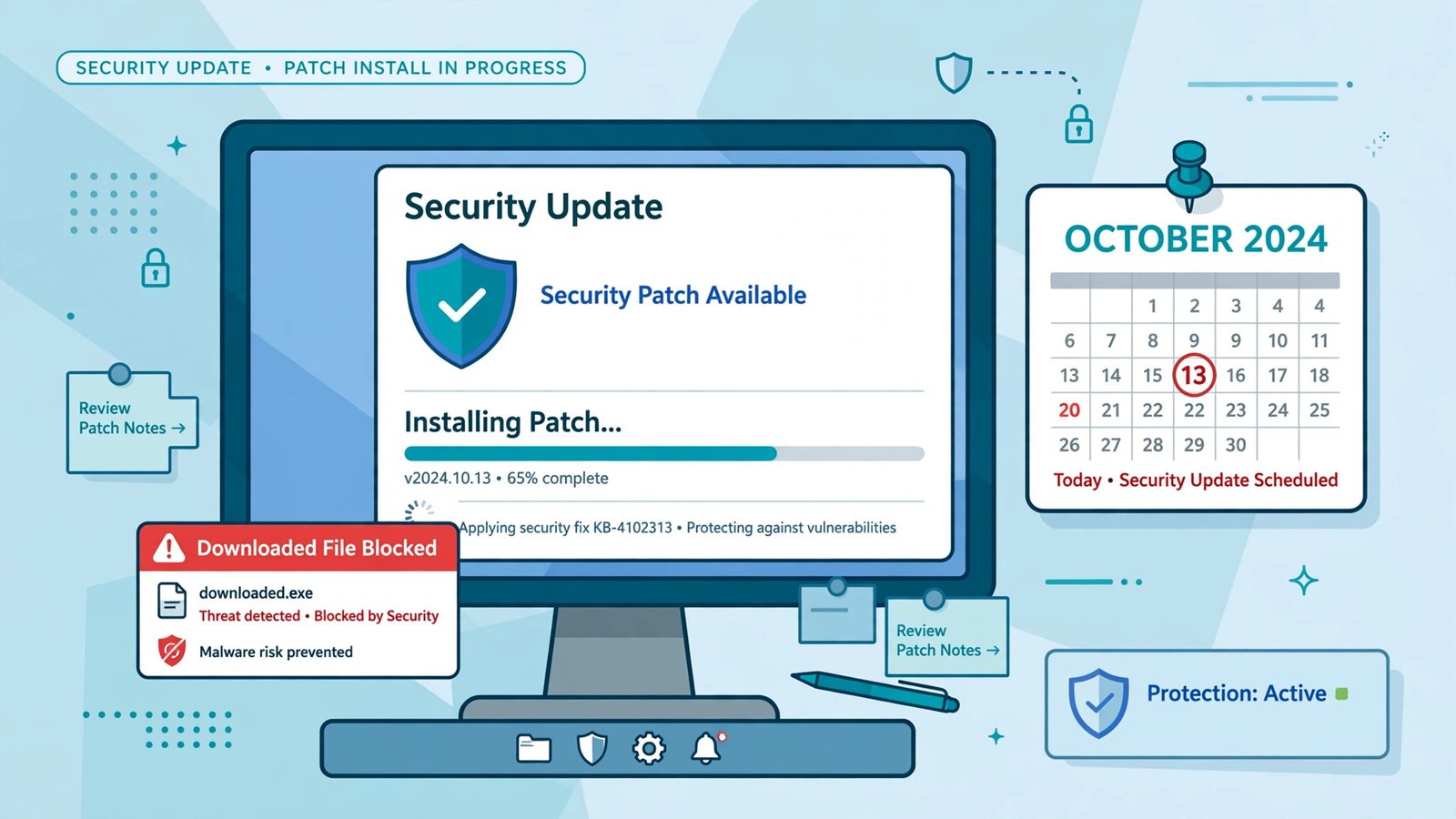
Microsoft’s October 2026 Patch Tuesday landed on October 13 with a record-breaking 1,411 flaws fixed — including one actively exploited zero-day that lets attackers bypass one of Windows’ most important safety checks. If you run Windows 11, the update you need is KB5127648. Install it, restart, and verify it took. This one is not a “get around to it” update: the exploited flaw is already being used in real attacks, and for anyone still on Windows 11 version 24H2 Home or Pro, this is the last security update that version will ever receive.
Here is what the update fixes, why the zero-day matters more than its score suggests, and the exact checklist to get every PC in your house or small business patched — including what to do if you are on the version Microsoft just stopped supporting.
The headline: 1,411 flaws, three zero-days, one being exploited
Patch Tuesday totals vary by how you count them. BleepingComputer, which counts only vulnerabilities released by Microsoft on Patch Tuesday itself, puts this month at 1,411 flaws — a record. That figure excludes another 348 flaws Microsoft fixed earlier in October across Azure, Exchange, and other services. Of the Patch Tuesday batch, 70 vulnerabilities are rated Critical, including 57 remote code execution flaws. Elevation-of-privilege bugs made up the largest single category overall.
But the number that matters is three: this release contains three zero-days — vulnerabilities disclosed or exploited before a patch existed. Only one of them is actively being exploited in the wild, and it is the one to understand first.
CVE-2026-96951: the exploited Windows Shell zero-day
The urgent flaw is CVE-2026-96951, a Windows Shell security-feature bypass rated 8.8 out of 10 (High) by CVSS and “Important” by Microsoft. Microsoft’s advisory confirms exploitation has been detected — attackers are already using it. Here is what it does, in plain English.
Every file you download from the internet gets an invisible tag called Mark of the Web (MotW). That tag is what tells Windows “this file came from outside, treat it with suspicion.” It is the trigger behind a whole chain of protections: SmartScreen checks, Office Protected View, the Office macro block, Smart App Control, and the “are you sure you want to open this?” prompts from Attachment Manager. The tag is not the protection itself — it is the signal every guard in the building checks.
CVE-2026-96951 is a command-injection weakness in Windows Shell that lets an attacker deliver a file that never gets the tag. The file opens as though you created it locally. No warning dialog. No read-only view. No macro block. One flaw switches off several controls at once, which is why a single MotW bypass is worth more than its 8.8 score suggests.
The attack requires user interaction — the victim has to open a crafted file or link, typically delivered by email or message. That is the standard phishing shape, and it is exactly why this flaw is dangerous in the real world: it turns the “I clicked a bad link” mistake, which Windows is designed to contain, into a much more serious one. Microsoft has not disclosed how the flaw was used in attacks or who reported it. One analysis credits researchers including Anthropic’s Benoit Sevens, who found a companion issue using Claude AI, alongside researchers from Fujitsu and Google — a sign of how much AI-assisted security research now feeds into these disclosures.
This is also the third Windows Shell flaw exploited in the wild in 2026 alone, after CVE-2026-21510 in February and CVE-2026-32202 in April. MotW bypasses are a recurring target because they are so valuable to attackers. Patching this one is not optional.
The other two zero-days
CVE-2026-108398 is a .NET Framework security-feature bypass, also rated 8.8, publicly disclosed before the patch. It lets an attacker who already has a low-privilege account on a machine bypass Windows Defender Application Control (WDAC) by registering a crafted .NET assembly to be loaded by a protected process. This is not a drive-by threat — the attacker needs an account on the machine first — but it is serious for anyone relying on WDAC or App Control allowlisting to contain an intruder who already has a foothold. There is no workaround; the patch is the mitigation.
CVE-2026-92707 is a publicly disclosed denial-of-service flaw in MessagePack-CSharp, a .NET library, caused by uncontrolled memory allocation. An unauthenticated attacker can trigger it over a network. Less urgent than the other two, but it rides along in the same cumulative update, so you get it by installing the standard patch.
Microsoft also republished a Cisco Talos finding, CVE-2026-21413, a remote code execution flaw in the Raw Image Extension. If you open RAW camera photos on your PC, that one is yours too.
Which update you need: the KB numbers
Windows updates are cumulative — one package per version, containing everything. Find your version, install its update, and restart. A PC waiting for its restart is not protected yet.
| Windows version | Update | Fixed build |
|---|---|---|
| Windows 11 24H2, 25H2, 26H2 | KB5127648 | 26100 / 26200 / 26300.9711 |
| Windows 11 26H1 | KB5127646 | 28000.3231 |
| Windows 11 23H2 | KB5126653 | 22631.7652 |
| Windows 10 21H2 / 22H2 | KB5126657 | 19044.7807 |
| Windows Server 2025 | KB5126646 | 26100.33650 |
| Windows Server 2022 | KB5126655 | 20348.5761 |
| Windows Server 2012 R2 | KB5126836 | 9600.23470 |
One warning from the research: Windows Server 2012 — the original release, not R2 — reportedly receives no patch for CVE-2026-96951 and stays exposed. Server 2012 and 2012 R2 also just reached the end of their third and final year of paid Extended Security Updates on October 14. If you still have a Server 2012 box doing anything connected to the internet, this month is the deadline to retire or isolate it, not to patch it.
If you are on Windows 11 24H2, this update is your last
Here is the part that will catch the most people. October 13, 2026 was also the end-of-servicing date for Windows 11 version 24H2 Home and Pro. Microsoft’s own statement: “Today, October 13, 2026, Windows 11, version 24H2 Home and Pro… have reached end of updates. The October 2026 monthly security update is the last update available for these editions.”
Nothing breaks on October 14. Your PC still boots, your files are still there, and Excel still opens. What stops is the monthly Patch Tuesday cadence that closes newly found holes. Every vulnerability discovered from now on — including the next MotW bypass — stays unpatched on 24H2 Home and Pro forever. Enterprise and Education editions of 24H2 keep receiving updates until October 12, 2027, but consumer and small-business PCs are almost all Home or Pro.
The fix is straightforward, and this time it is unusually painless. Windows 11 24H2, 25H2, and 26H2 share the same underlying servicing foundation, so upgrading to 26H2 is delivered as a small enablement package — about 174 KB on x64 PCs — rather than a full reinstall. Most of the 26H2 code is already dormant on your PC from monthly updates; the package just switches it on with one restart. Microsoft began rolling out 26H2 on September 29, and it is supported on Home and Pro until October 2028. If you are on 24H2, install KB5127648 now, then go to Windows Update and take the 26H2 upgrade. If your PC is managed or you have been deferring feature updates, check with whoever manages it — but do not let the deferral ride past this month.
If you are already on 25H2, you are covered until October 2027 and just need this month’s patch. If you are on 26H2, this is that version’s first regular monthly security update. Either way, the action is the same: install and restart.
The install checklist
Do this on every Windows PC you are responsible for, in this order:
1. Check your version first
Press Windows + R, type ms-settings:about, and press Enter. Under Windows specifications, note the edition and version. If it says 24H2 and Home or Pro, you have two jobs: this patch, then the 26H2 upgrade. If it says 25H2 or 26H2, one job.
2. Back up anything you cannot afford to lose
Patch Tuesday updates are heavily tested, but a backup before any system update is cheap insurance. If you do not have a backup routine, copy your important files to an external drive or cloud storage before you start. It takes ten minutes and removes the only real risk in this process.
3. Install the update
Go to Settings → Windows Update → Check for updates. Install everything offered, including the cumulative update for your version. On a metered connection, you may need to allow downloads over metered connections, or connect to unmetered Wi-Fi first.
4. Restart — and confirm it actually restarted
The update is not protection until the restart completes. After rebooting, verify the build number. Open PowerShell and run:
$v = Get-ItemProperty 'HKLM:\SOFTWARE\Microsoft\Windows NT\CurrentVersion'; "$($v.CurrentBuild).$($v.UBR)"
Compare the result to the fixed-build column in the table above. If the number is lower, the update did not finish — check Windows Update again.
5. Prioritize the PCs people open email on
If you manage several machines, patch in this order: laptops and desktops where people read email and download files first, then shared and admin workstations, then servers on your normal schedule. The exploited flaw needs a person to open a file, so the machines where people open files are the exposure.
6. Tell your people what to watch for
A patch does not replace vigilance. Remind everyone on your team: unexpected attachments and links, even from familiar senders, get a second look. The classic tell is still an urgent message pushing you to open something right now. If a file opens without the usual warnings — no SmartScreen prompt, no Protected View banner — treat that as suspicious, not convenient.
What else is in this month’s update
The October update is not only security fixes. Testing by Windows Latest found a batch of quality-of-life changes in this release: File Explorer previews downloaded PDFs again and adds a “Preview anyway” button for HTML files, the Copilot key can be remapped to Right Ctrl or the Context Menu key, there is a new accessibility setting to open apps maximized, Bluetooth audio and microphone fixes, Emoji 17.0, touchpad single-finger scrolling, a Tips widget for the Widgets board and lock screen, camera roll backup to OneDrive from Settings, and a Magnifier toolbar refresh. PC-to-PC Migration was removed. None of that is a reason to install — the zero-day is — but it is a reminder that skipping cumulative updates also means skipping fixes you would have wanted.
How Mark of the Web actually works — and why attackers keep targeting it
Understanding why this one flaw matters requires understanding what MotW is. When you download a file from the internet — an email attachment, a browser download, a file from a cloud link — Windows NTFS attaches an alternate data stream to it called Zone.Identifier. That stream records which security zone the file came from. It is invisible in File Explorer, it survives being copied between folders, and it costs nothing to maintain. But everything downstream reads it.
Here is the chain it triggers. When you double-click a tagged executable, SmartScreen checks the file’s reputation with Microsoft before it runs. When you open a tagged Word or Excel document, Office opens it in Protected View — a read-only sandbox where macros cannot run and editing is disabled until you explicitly enable it. Tagged files also trigger Attachment Manager prompts, and on Windows 11, Smart App Control uses the tag as one of its signals. The tag is the tripwire; the protections are the response.
Attackers love MotW bypasses because a single flaw defeats the whole chain at once. Instead of having to beat SmartScreen, Protected View, and the macro block separately, they just make sure the file never gets tagged in the first place. That is what makes CVE-2026-96951 so valuable to them, and why security teams treat MotW bypasses as priority-one patches even when the CVSS score looks merely “Important” rather than “Critical.” The score measures the flaw in isolation; the real-world impact is the entire defensive chain going quiet.
There is a second reason attackers keep coming back to this well: MotW is old, and its implementation touches a huge amount of legacy Shell code. The three exploited Shell flaws in 2026 alone show the pattern. Each one was patched, and each time attackers found another path through the same code. Patching is still the right answer — there is no configuration change that restores MotW enforcement once it is bypassed — but the pattern is also a reminder that the tag is a tripwire, not a wall. Defense in depth matters: keep your antivirus active, keep Office’s macro protections on, and do not treat the absence of a warning as proof a file is safe.
You can actually see MotW for yourself. Right-click any downloaded file, choose Properties, and look at the bottom of the General tab. If the file came from the internet, you will often see a security notice: “This file came from another computer and might be blocked to help protect this computer,” with an Unblock checkbox. That notice is the tag made visible. If a file you know you downloaded shows no such notice, treat it with extra suspicion — either it was never tagged, or something removed the tag.
What to do if you think you already clicked something bad
Patching protects you going forward. If you opened a suspicious file before patching, patching does not undo whatever the file did. Work through this checklist:
- Disconnect, but do not power off. Unplug the Ethernet cable or turn off Wi-Fi. This stops any active connection to the attacker. Do not shut the PC down yet — a shutdown can destroy forensic evidence and, on some machines, trigger a persistence mechanism.
- Run a full antivirus scan. Open Windows Security → Virus & threat protection → Scan options → Full scan. Let it complete. If it finds anything, follow its removal steps, then run a second scan.
- Run a second-opinion scan. Microsoft’s free Malicious Software Removal Tool (MSRT) ships with Windows Update, but an on-demand second opinion from a reputable vendor’s free scanner is worth the time when you suspect a real compromise.
- Change your important passwords from a different device. Email first, then banking, then everything else that shares credentials. Do this from a clean phone or PC, not from the machine you suspect is compromised.
- Check for new accounts and scheduled tasks. On a home PC, check Settings → Accounts → Other users for accounts you did not create. On a business PC, hand this step to your IT person — a compromise that created a new account or scheduled task needs professional cleanup.
- Watch your accounts for two weeks. Enable transaction alerts on banking and card apps if they are not already on. Most follow-on fraud from a compromised PC shows up within days, not months.
- If it is a work machine, tell IT immediately. Do not try to clean a business compromise quietly. The most expensive breaches start as one person deciding not to report one click.
None of this is a substitute for professional incident response if you find real evidence of compromise. But for the far more common case — “I clicked something odd and now I am worried” — this sequence covers the realistic risks without panic.
Other deadlines hiding in this Patch Tuesday
October is a heavy month for Microsoft lifecycle endings, and Patch Tuesday week is when several of them land (Rapid7’s Patch Tuesday analysis has the full lifecycle rundown):
- Windows 10 Enterprise LTSB 2016 also reached end of support on October 13.
- Windows Server 2022 moved to extended support — free critical security updates continue, but no further feature development.
- Office 2021 retired on October 14, including the Long-Term Servicing Channel, with no Extended Security Updates available.
- Exchange Server 2016 and 2019 reached end of support on October 15, after two previous six-month reprieves, with no ESU this time.
If any of those are running in your small business, each one is now a permanently unpatched system. The Exchange deadline is the sharpest: Microsoft has said future Exchange CVEs will stop mentioning 2016 and 2019 at all, which does not mean they are not vulnerable. Migrate or isolate them.
Why this month is different
Most Patch Tuesdays are routine. This one is not, for three converging reasons. First, the actively exploited MotW bypass turns an ordinary phishing click into a silent compromise — the exact scenario every layer of Windows security is built to contain. Second, the record 1,411-fix count means the attack surface being closed is unusually broad; the longer you wait, the more of it stays open. Third, the 24H2 end-of-servicing deadline means a large share of PCs will never get another patch after this one if their owners do not also upgrade. Any one of those would justify installing today. Together, they make this the most important Patch Tuesday of 2026.
If you are on Windows 11 26H2 already, you already did the hard part — now just install the update and restart. If you are still on 24H2, today is a two-step day: patch, then upgrade. Either way, do it before the next phishing email lands, not after.
Frequently Asked Questions
What is KB5127648?
KB5127648 is the October 2026 cumulative security update for Windows 11 versions 24H2, 25H2, and 26H2. It fixes the actively exploited CVE-2026-96951 zero-day plus more than 1,400 other vulnerabilities, and it is the final security update for 24H2 Home and Pro.
What does the CVE-2026-96951 zero-day do?
It is a command-injection flaw in Windows Shell that lets an attacker deliver a file that never receives the Mark of the Web tag — the invisible marker that triggers SmartScreen, Office Protected View, and macro blocks. The file then opens as though it were created locally, with no warnings. Microsoft confirms it is being exploited in the wild.
Do I need to restart after installing the update?
Yes. The patch does not protect you until the restart completes. After rebooting, verify your build number in PowerShell against the fixed-build numbers in the table above.
What happens if I stay on Windows 11 24H2 Home or Pro?
Your PC keeps working, but it will never receive another security update. Every vulnerability discovered after October 13, 2026 stays unpatched on that version. Upgrade to 26H2 via Windows Update — it is a small enablement package, not a full reinstall.
Is Windows 10 still getting this patch?
Yes. Windows 10 versions 21H2 and 22H2 receive KB5126657 in this release. Windows 10 Enterprise LTSB 2016 reached end of support on October 13, 2026. If you are on a consumer Windows 10 edition and want paid coverage beyond that date, see how Windows 10 ESU extends to October 2027.
What if the update fails to install?
Free up disk space, run the Windows Update troubleshooter (Settings → System → Troubleshoot → Other troubleshooters), and try again. If it still fails, download the update manually from the Microsoft Update Catalog by searching for its KB number. Do not skip the update because the automatic install failed.