The short answer: Google built a tiny shell tool so your coding agent can call Gemini without leaving the terminal
Google’s AI Studio team released an experimental preview of the Gemini API CLI, a command-line tool called gemini-api, in October 2026. It is a stateless, zero-dependency Go binary for macOS, Linux, and Windows, open source under Apache 2.0, and its job is deliberately narrow: let any shell-capable coding agent call Gemini’s API with one command. Text reasoning, image, video, music, and speech generation, file and YouTube analysis, audio and video transcription, and managed agents such as Deep Research are all reachable from the shell, using a GEMINI_API_KEY for authentication.
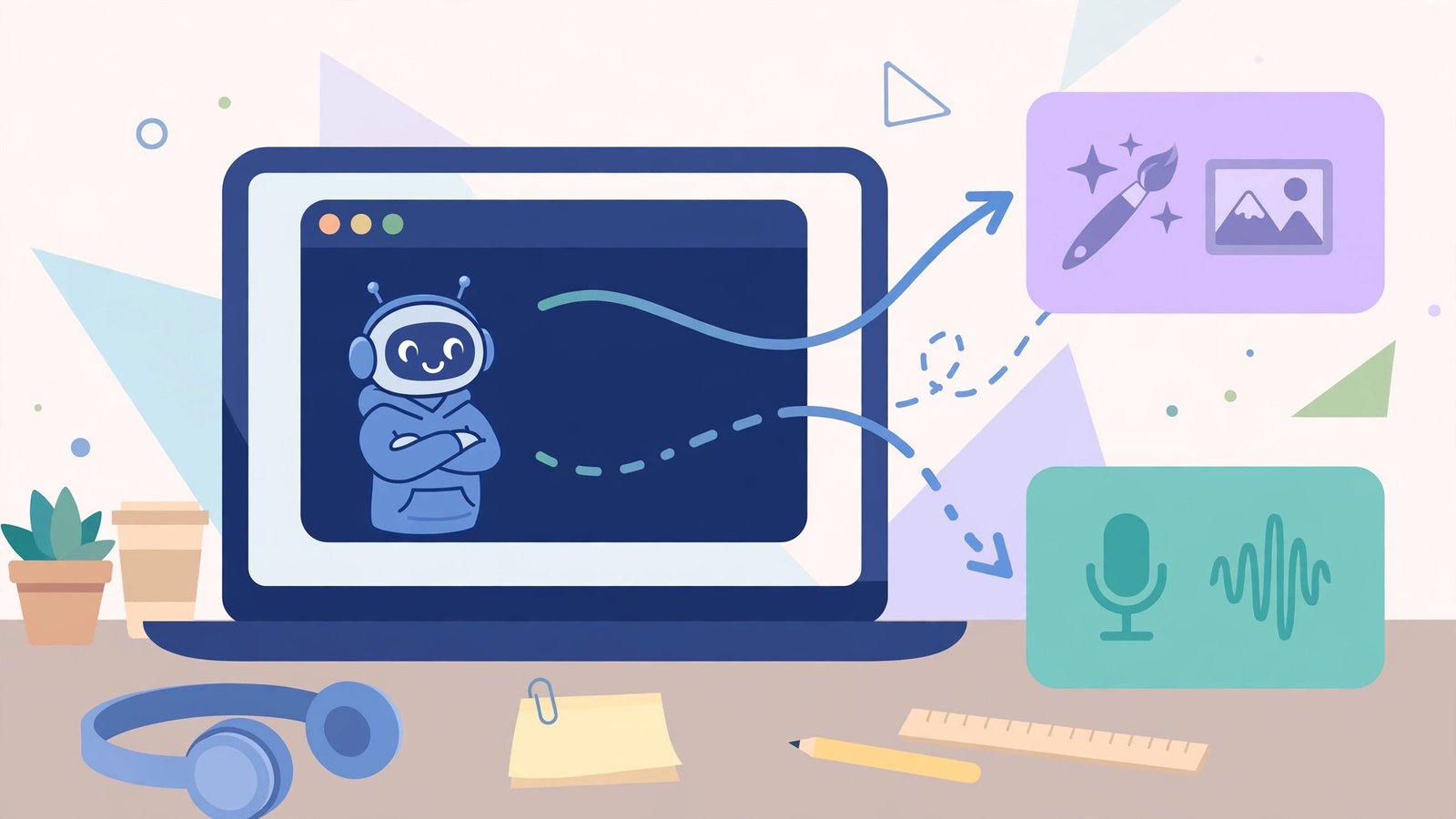
That sounds like a small thing, and in a sense it is. It is not a new model, not a new chatbot, and not a replacement for the coding agent you already use. Its value is in what it removes: the glue code. Before this tool, getting a coding agent to use Gemini for a side job usually meant writing a custom API integration, handling authentication, and figuring out how to pass large media files through a chat context window without blowing it up. The Gemini API CLI handles the plumbing, and it handles media in a particularly smart way: generated media is written straight to disk, and only the file path goes back to the agent’s output. Base64 payloads never land in the context window, which is the difference between a workflow that works and a workflow that chokes on its own output.
This article is written for freelancers and small teams who already use a coding agent and want to know whether this tool earns a place in their setup. I will explain what it is, how it differs from the better-known Gemini CLI, which jobs are worth offloading to Gemini and which should stay in your main agent, how to install and verify it safely, and why its experimental label should shape every decision you make about it. I have not built a client pipeline on it, and I would not advise you to either, yet. What it is good for right now is a specific, practical set of side jobs, and that is plenty.
First, do not confuse it with Gemini CLI
The naming here is genuinely confusing, and getting it wrong will waste your afternoon, so let me draw the line clearly.
Gemini CLI is Google’s interactive, terminal-based AI agent. You open it, you chat with it, it has tools, it edits files, and it feels like a coding assistant that lives in your terminal. It is a full agent experience.
The Gemini API CLI is something else. It is not interactive in the same way, and it is not trying to be your coding partner. It is a thin, stateless bridge: your existing agent, whether that is Claude Code, Codex, Cursor, or a shell script, calls it from the command line, gets a result back, and moves on. Think of Gemini CLI as hiring a second developer, and the Gemini API CLI as giving your current developer a phone number they can call when they need a specialist. The distinction matters because the two tools solve different problems. If you want a new agent, you do not need this tool. If you want your current agent to borrow Gemini’s capabilities for specific jobs, this tool is exactly the bridge for that.
The version covered here is v0.4.3, published October 19, 2026, and publicised around October 22. Because the tool is experimental and moving fast, treat every version number, default model, and flag in this article as a snapshot of late October 2026, and check the official README before you rely on any of them. Experimental tools change defaults without ceremony, and a guide that pretends otherwise is setting you up for a broken script.
What it can actually do
The headline capability list, as reported from the official README, covers a lot of ground for one small binary. Text reasoning is the base: ask a question, get an answer, with no conversation state carried between calls. Image generation, video generation, music generation, and speech generation cover the media side. File analysis and YouTube analysis cover the input side: point it at a file or a video and ask for a summary, a transcript, or an analysis. Transcription covers audio and video. Managed agents, such as Deep Research, let a shell command kick off a longer, server-side research task.
The default models reported from the README are worth knowing, because they tell you what kind of quality to expect from each job. Text generation, analysis, and transcription default to gemini-3.8-flash. Image generation defaults to gemini-nano-banana-2.1. Video defaults to gemini-omni-1.1-flash. Music defaults to lyria-3.5. Speech defaults to gemini-3.8-flash-tts. Those defaults are sensible for side jobs: fast, capable models for work that does not need the most powerful reasoning available, with the option to choose differently when a job deserves it.
Two design choices make this tool more useful than a generic API wrapper. The first is the media-to-disk behavior described above. Anyone who has watched a coding agent struggle with a base64-encoded image in its context window will understand why this matters. The agent asks for an image, the tool writes a file, and the agent gets a path. The context window stays clean, the file is right there for the next step, and the workflow keeps moving.
The second is the set of agent-friendly flags. The tool can print its command tree as KDL with a usage flag, print JSON Schema for its commands with a schema flag, validate a command offline with a dry-run flag that redacts credentials, and emit structured JSON errors in agent mode. It also supports JSON and TOON output formats and inline jq filtering. Those are not features for humans typing commands by hand. They are features for agents that need to discover, validate, and parse commands programmatically, and they are the clearest sign that Google built this tool for agent-to-agent use rather than as a human utility.
Exit codes follow the same agent-first thinking. Reported codes separate four cases: zero for success, one for runtime or API failure, two for usage or validation errors, and three for authentication failure. A script or agent that checks exit codes can tell the difference between “your command was wrong,” “the API failed,” and “your key is bad,” and can react differently to each. That is a small detail, and it is the kind of detail that separates a tool you can automate from a tool you have to babysit.
The tool also manages sandbox environments, server-side credentials, webhooks, and cron triggers for managed agents. Files uploaded through the Files API are kept for 48 hours, which is a practical limit to know: anything you upload for analysis has a two-day lifespan, so long-running workflows should not assume an uploaded file will still be there next week.
The task-routing table: which jobs to offload, which to keep
The most useful question about this tool is not “what can it do” but “what should my main agent hand to it.” Every offloaded job costs an API call, a round trip, and a context switch. Every job kept in the main agent costs context window space and, often, a model that is less suited to the task. The table below is the decision framework I would use, and it is the original value in this article: a practical routing guide for a freelancer running one main coding agent.
| Job | Offload to Gemini API CLI? | Why |
|---|---|---|
| Generate an image for a mockup, thumbnail, or placeholder | Yes | Media goes to disk, not into your context window, and the image model is built for this |
| Generate a short video clip or a music bed for a prototype | Yes | Same media-to-disk advantage, and your main agent likely cannot generate video or music at all |
| Transcribe a meeting recording or a video | Yes | Transcription is a commodity job that eats context if done in the main agent |
| Analyze a long file, document, or YouTube video | Yes, with a size check | Good for summaries and first-pass analysis, but check the file size and the 48-hour Files API limit |
| Draft a README, changelog, or docstring | Maybe | Fine for a first draft, but review it yourself; your main agent knows your codebase better |
| Write or refactor production code | No | Keep code work in your main agent, where the project context, tests, and history live |
| Debug a failing test or a production bug | No | Debugging needs your codebase context, and a stateless call starts from zero every time |
| Run a Deep Research task in the background | Yes, for research, not for decisions | Useful for gathering material, but treat the output as research to verify, not as a conclusion |
| Anything involving secrets, keys, or private customer data | No, not yet | A stateless shell call with an API key deserves a careful data review before it touches sensitive material |
The pattern in that table is simple. Offload jobs where the input is self-contained, the output is a file or a summary, and the main agent adds no special value by doing the work itself. Keep jobs where the value comes from context: your codebase, your project history, your tests, your customer’s data, or a decision that needs judgment. A coding agent’s advantage is not that it can do everything. It is that it knows your project. Handing away the jobs that need that knowledge, to a stateless tool that starts fresh every call, is a step backwards dressed up as automation.
Let me make that concrete with three freelancer workflows that work well.
The first is the content-asset workflow. You are building a landing page, and you need a hero image, a short background clip, and a transcript of a client interview. Your main agent writes the page, and for each asset it calls the Gemini API CLI, gets a file path back, and drops the path into the page. The main agent never sees a base64 image, never waits on a video render in its own context, and never loses track of the page structure because the context window filled up with media. That is the workflow this tool was built for.
The second is the research-first workflow. You are scoping a feature and want a survey of how other tools solve the same problem. Your main agent kicks off a managed Deep Research task through the CLI, keeps working on the codebase, and comes back to a research summary when it is ready. The summary is a starting point, not a verdict, and you verify the claims that matter before you build on them. Used that way, the tool buys you parallel research without parallel context cost.
The third is the transcription pipeline. You record client calls, user interviews, or your own voice notes, and you need clean text from them. A shell script that feeds each recording through the CLI and writes a transcript file is a genuinely useful piece of automation, and it is the kind of boring, repeatable job that should never have occupied a coding agent’s attention in the first place.
Installing and verifying it without breaking anything
Installation is reported as a one-line curl script on macOS and Linux, a PowerShell script on Windows, or a Go install for those who prefer to build from source. I am not going to reproduce the exact install commands here, because an experimental tool’s install script is exactly the kind of thing that changes between versions, and a copied command from a guide is how people end up running an outdated installer. Get the current command from the official GitHub README, read it before you run it, and confirm the version it installs.
Once it is installed, verify it in a safe order. First, run it with no credentials and confirm it fails cleanly with an authentication error, which tells you the binary works and the error handling is sane. Second, set your API key as an environment variable, GEMINI_API_KEY, and run a dry-run command to validate the setup without making a real API call. The dry-run flag redacts credentials, which is a small but reassuring detail: a tool that prints your key in a validation output is a tool you should not trust with your key. Third, run one tiny, cheap job, such as a short text generation, and confirm the output format and the exit code. Only then should you wire it into an agent workflow.
Key handling deserves its own paragraph, because it is where most shell-tool setups go wrong. Put the key in an environment variable, not in a script, not in a chat message, and not in a file you commit to version control. If your agent framework has a secrets store, use it. If you share a terminal session, a screen recording, or a log file, scrub the key first. The dry-run flag helps, but it does not replace good key hygiene. And remember that the tool’s server-side credentials and webhook features mean you should read the README’s security section before enabling anything that stores credentials on a server rather than on your own machine.
Cost is the other question to settle before you automate anything. The CLI itself is free and open source, but the API calls it makes are billed through the Gemini API, under whatever pricing and quota apply to your key. I am not quoting API prices here, because they change and because your tier, region, and usage pattern all affect the bill. Check the current Gemini API pricing page, set a budget alert if your provider offers one, and run a small job first to see what it actually costs. A freelancer who automates a media-generation workflow without checking the price first is one busy week away from an unpleasant invoice.
The experimental label is the whole story
Google labels this tool experimental and not a supported product, and you should take that label seriously. It means the command names, the default models, the flags, and even the existence of the tool can change without the notice period you would expect from a supported product. It means you should not build a client pipeline on it, you should not promise a client a workflow that depends on it, and you should not let it become a load-bearing part of your business until it graduates from experimental status.
That does not make it useless. It makes it a tool for experiments, prototypes, side jobs, and personal workflows, where a breaking change costs you an afternoon rather than a client. The right way to use an experimental tool is to isolate it: wrap its calls in a small script or function, keep the interface between your main agent and the CLI in one place, and make it easy to swap the tool out if it changes or disappears. If every agent prompt in your system calls the CLI directly by name, a rename breaks everything. If one wrapper function calls it, a rename breaks one function.
There is also a data question to settle before you use it on anything sensitive. A stateless call still sends your input to Google’s API, and files uploaded through the Files API are kept for 48 hours. That is normal for an API, and it is not a reason to avoid the tool, but it is a reason to think before you send client code, private documents, or personal data through it. Check the API’s data handling terms for your tier, keep sensitive material out of experimental workflows until you have read them, and prefer local tools for anything you would not want to see in a server log.
The honest verdict is this: the Gemini API CLI is a well-designed bridge to a set of capabilities your coding agent probably lacks, and it is worth an afternoon of experimentation for any freelancer who already lives in the terminal. It is not a reason to switch coding agents, it is not a replacement for your main agent, and it is not ready to carry a client workflow. Use it for the jobs in the routing table, keep it behind a wrapper, watch the README for changes, and let it earn a bigger role by proving itself on small jobs first.
For related reading, our guides to AI thumbnail tools for YouTube and AI voice generators for YouTube cover the media-generation side of a creator workflow, and the YouTube Shorts monetization requirements for 2026 explain what happens after those assets become content. External sources for this article include AICoder’s report on the Gemini API CLI preview and AIDeveloper44’s overview of the experimental tool.
Frequently Asked Questions
What is the Gemini API CLI?
It is an experimental, open-source command-line tool from Google’s AI Studio team, called gemini-api, that lets shell-capable coding agents call the Gemini API for text, image, video, music, and speech generation, file and YouTube analysis, transcription, and managed agents such as Deep Research.
How is it different from Gemini CLI?
Gemini CLI is an interactive terminal agent you chat with. The Gemini API CLI is a stateless bridge: your existing coding agent calls it from the shell, gets a result back, and moves on. It does not replace your coding agent; it gives that agent access to Gemini’s capabilities for specific jobs.
Which models does it use by default?
As reported from the official README in late October 2026, text generation, analysis, and transcription default to gemini-3.8-flash, image generation to gemini-nano-banana-2.1, video to gemini-omni-1.1-flash, music to lyria-3.5, and speech to gemini-3.8-flash-tts. Check the README for the current defaults, because experimental tools change them.
Does it cost money to use?
The CLI binary itself is free and open source, but the API calls it makes are billed through the Gemini API under your key’s pricing and quota. Check the current Gemini API pricing page and run a small job first before automating anything.
Why does media go to disk instead of back into the agent’s context?
Because base64-encoded media can fill a context window fast and crowd out the actual work. Writing generated media straight to disk and returning only the file path keeps the agent’s context clean and leaves the file ready for the next step in the workflow.
Should I build a client project on it?
Not yet. Google labels it experimental and not a supported product, which means commands, defaults, and availability can change without much notice. Use it for prototypes, side jobs, and personal workflows, keep it behind a wrapper function so a change breaks one place instead of many, and wait for it to graduate before making it load-bearing for a client.