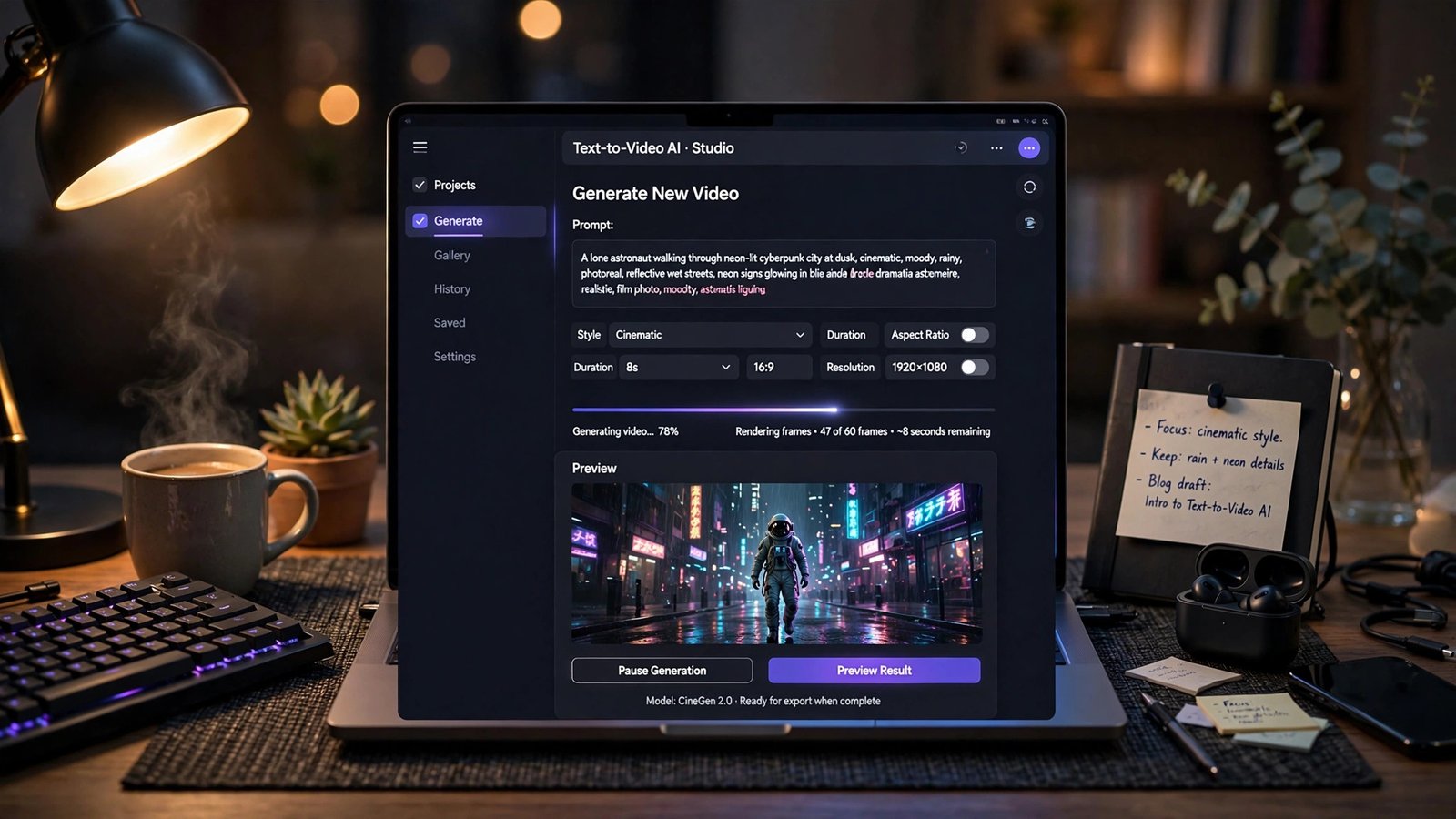
AI video generators went from party trick to practical tool fast. In 2026, a beginner with no editing experience can turn a paragraph of text into a finished video in minutes — for social media, marketing, education, or a faceless YouTube channel.
But there are dozens of tools now, and they are not interchangeable. Some make cinematic clips from prompts. Others build full videos from scripts. Some are free; some will burn through credits before you learn the interface. This guide compares the seven best options for beginners — what each does well, what it costs, and which one fits your actual goal.
What Beginners Should Look For
Before the list, know what matters when you’re starting out:
Ease of use. The best beginner tool is the one you’ll actually finish a video in. Drag-and-drop and templates beat powerful-but-confusing every time at the start.
A real free tier. Many tools advertise “free” but mean “three watermarked exports.” Look for free plans that let you genuinely test the workflow.
Output type. Decide what you need: short AI-generated clips (for creative/social content), full assembled videos from a script (for marketing/education), or avatar presenters (for training and explainers). Different tools dominate each.
Export quality and watermarks. Check whether free exports carry watermarks and what resolution you get. A watermarked video is fine for testing, useless for publishing.
1. InVideo AI — Best for Script-to-Video
Type a prompt or paste a script, and InVideo generates a complete video: visuals, voiceover, captions, and music, all assembled. It’s the closest thing to “describe the video, get the video” for full-length content.
Best for: Marketing videos, explainers, blog-to-video repurposing.
Free tier: Limited but functional for testing the workflow.
Watch out for: Stock footage variety on the free plan is thinner; paid plans unlock the good library.
If your goal is turning ideas or articles into finished videos fast, start here.
2. Pictory — Best for Long-Form to Short Clips
Pictory specializes in converting long content — blog posts, webinars, podcasts — into short shareable videos. Paste a URL or upload a file, and it pulls out the key moments with captions and visuals.
Best for: Repurposing existing content, social clips, highlights.
Free tier: Trial-based; enough to test with one or two projects.
Watch out for: It’s a repurposing tool first, not a from-scratch creator. You need source material.
Content creators sitting on a backlog of blogs or long videos get the most value here.
3. HeyGen — Best for AI Avatar Videos
HeyGen creates talking-head videos with realistic AI avatars. Type your script, pick an avatar, and get a presenter-style video without filming anyone. The avatars have gotten remarkably lifelike.
Best for: Training videos, product demos, educational content, testimonials-style explainers.
Free tier: One of the more generous free plans in this category — enough for real testing.
Watch out for: Avatar videos suit informational content; they feel odd for creative or cinematic projects.
Check the official HeyGen site for current plan details — pricing in this space moves often.
4. Canva Magic Media — Best All-Rounder for Beginners
If you already use Canva, its AI video features slot right into the editor you know. Generate short clips from text prompts, then keep editing with Canva’s templates, text, graphics, music, and brand kits.
Best for: Social media videos, quick promos, branded content.
Free tier: A set number of free AI generations; exports are clean on free elements.
Watch out for: The AI generation itself is basic compared to dedicated video models — the strength is the all-in-one workflow, not the raw generation quality.
For bloggers, small businesses, and social media managers, this is often the only tool needed.
5. Lumen5 — Best Template-Based Marketing Videos
Lumen5 turns text into videos using a template-driven builder. It’s less “AI magic” and more “smart assembly” — but for consistent branded marketing content, that reliability is a feature.
Best for: Social marketing teams, regular content calendars, branded series.
Free tier: Limited videos with branding watermark considerations — check current terms.
Watch out for: Creative ceiling is lower than prompt-based generators. Great for consistency, not for cinematic experimentation.
6. Runway — Best for Creative Control
Runway is the power tool on this list — text-to-video and image-to-video with serious quality, plus an editing suite. It’s the choice for creators who want cinematic AI clips and are willing to climb a learning curve.
Best for: Creative projects, short films, high-end social content, faceless channel visuals.
Free tier: Limited credits — enough to learn, not enough to produce at volume.
Watch out for: This is the least “beginner” tool here. Start with the simpler options unless you specifically want cinematic generation.
The quality gap between Runway and template tools is real. So is the learning curve. Match the tool to your ambition.
7. Pika / PixVerse — Best for Short-Form Social
Pika and PixVerse focus on short, punchy AI-generated clips — ideal for Reels, TikTok, and YouTube Shorts. They’re fast, fun, and built around the kind of content that performs on social feeds.
Best for: Short-form social content, creative experiments, quick visuals.
Free tier: Both offer free generation tiers suitable for regular social posting.
Watch out for: Clip lengths are short by design. These complement an editing workflow; they don’t replace one.
Which One Should You Actually Pick?
Match the tool to the job:
- Marketing videos from scripts: InVideo AI
- Turning blogs into social clips: Pictory
- Presenter-style explainers without filming: HeyGen
- Quick branded social videos: Canva Magic Media
- Consistent template-based content: Lumen5
- Cinematic AI clips: Runway
- Short-form social clips: Pika or PixVerse
Most creators end up with two: one for generation, one for assembly and editing. A common beginner stack is Pika or Runway for clips plus CapCut (free) for editing — total cost near zero while learning.
Beginner Tips That Save You Money and Time
Start free, upgrade when you hit a wall. Every tool on this list lets you test before paying. Don’t subscribe until free credits are genuinely limiting your output.
Learn prompting before switching tools. Most disappointing AI video output is a prompt problem, not a tool problem. Specific prompts — subject, action, setting, lighting, camera movement, style — produce dramatically better clips than “make a cool video.”
Generate more than you need. AI video is unpredictable. Generate three variations of important clips and pick the best. It’s faster than trying to perfect one generation.
Keep clips short. AI video quality degrades over longer generations. Five-second clips assembled well beat one thirty-second clip with melting faces.
Check commercial rights. If you’re publishing for a business or monetized channel, verify the tool’s terms allow commercial use on your plan tier. Free tiers sometimes restrict this.
These tools pair naturally with a content business — if you’re turning videos into income, our guide to Facebook’s content monetization program explains how short-form video earns on that platform too.
Frequently Asked Questions
What is the easiest AI video generator for complete beginners?
Canva’s Magic Media and InVideo AI are the gentlest starting points — both guide you from idea to finished video without editing knowledge. HeyGen is similarly approachable if you want avatar presenters specifically.
Are there truly free AI video generators?
Yes, with limits. Canva, HeyGen, Pika, and PixVerse all offer free tiers that produce usable videos. Expect caps on generations per month, possible watermarks on some plans, and lower resolution than paid tiers. Always check the current free-plan terms before committing to a workflow.
Can beginners make money with AI-generated videos?
The videos are a means, not the income itself. Beginners earn by using these tools for faceless YouTube channels, client work, social media marketing, or course content. The tool doesn’t generate revenue — the content business you build with it does.
Do AI video generators add watermarks?
It depends on the tool and plan. Some free tiers export clean video; others watermark until you pay. This changes often, so verify on the tool’s pricing page before you plan a publishing workflow around a free tier.
What’s the difference between text-to-video and script-to-video tools?
Text-to-video (Runway, Pika) generates raw visual clips from descriptive prompts — you assemble them yourself. Script-to-video (InVideo, Pictory) takes your script or article and produces a complete assembled video with voiceover, captions, and music. Beginners usually want the second type first.
How long does it take to make a video with these tools?
A simple social video: 10–20 minutes once you know the tool. A polished 2-minute explainer: 30–60 minutes including prompt iteration and assembly. The learning curve is days, not months — which is exactly why these tools took off.