Microsoft’s November 2026 Patch Tuesday update, KB5132061, landed on November 10, 2026, and it is one of the more useful monthly updates Windows 11 has had in a while. It is a mandatory security update, so it will install on its own if you let Windows Update do its thing — but it also carries real features: a right-click menu you can finally customize, a way to reinstall Windows from the cloud without a USB stick, and performance improvements Microsoft says make everyday clicks up to 20% faster. The catch is that not every PC gets everything on day one, and if you are still on Windows 11 24H2 Home or Pro, you get none of it at all.
This guide walks through everything that is new, who actually gets each feature, and how to check whether your PC has it. Everything here is based on Microsoft’s KB5132061 release notes and hands-on reporting from Windows Latest and Notebookcheck, checked on November 23, 2026.
What KB5132061 Actually Is
KB5132061 is the November 2026 cumulative update for Windows 11. It arrived on Patch Tuesday, November 10, 2026, and it is mandatory — this is not one of those optional preview updates you have to go hunting for. If your PC is on a supported version of Windows 11, Windows Update will download and install it automatically, usually after a restart you did not ask for at the worst possible moment. I have learned to just let it happen overnight.
The update also folds in everything from the optional October 28 preview update, KB5127936. That matters because the preview is where most of these features first showed up for testers. If you installed that preview, November’s update will feel familiar. If you skipped it, you are getting several weeks of changes all at once.
Here are the build numbers it takes you to, depending on which version of Windows 11 you run:
- Windows 11 26H2 → build 26300.9974
- Windows 11 25H2 → build 26200.9974
- Windows 11 24H2 Enterprise and Education → build 26100.9974
Notice what is missing from that list: Windows 11 24H2 Home and Pro. Those editions reached the end of updates on October 13, 2026, so they do not receive KB5132061 at all. More on that in the upgrade section below, because it is the single most important thing in this article for a lot of readers.
One more thing to understand before we get into the features: Microsoft rolls these changes out gradually. Even if KB5132061 is installed on your PC, some of the features below may not appear right away. Microsoft turns features on in waves over days and weeks, and there is no button to skip the line. If a feature described here is missing on your PC, that is probably why — not because something went wrong.
The New Right-Click Menu: Windows 11’s Most-Used Menu Finally Gets a Settings Page
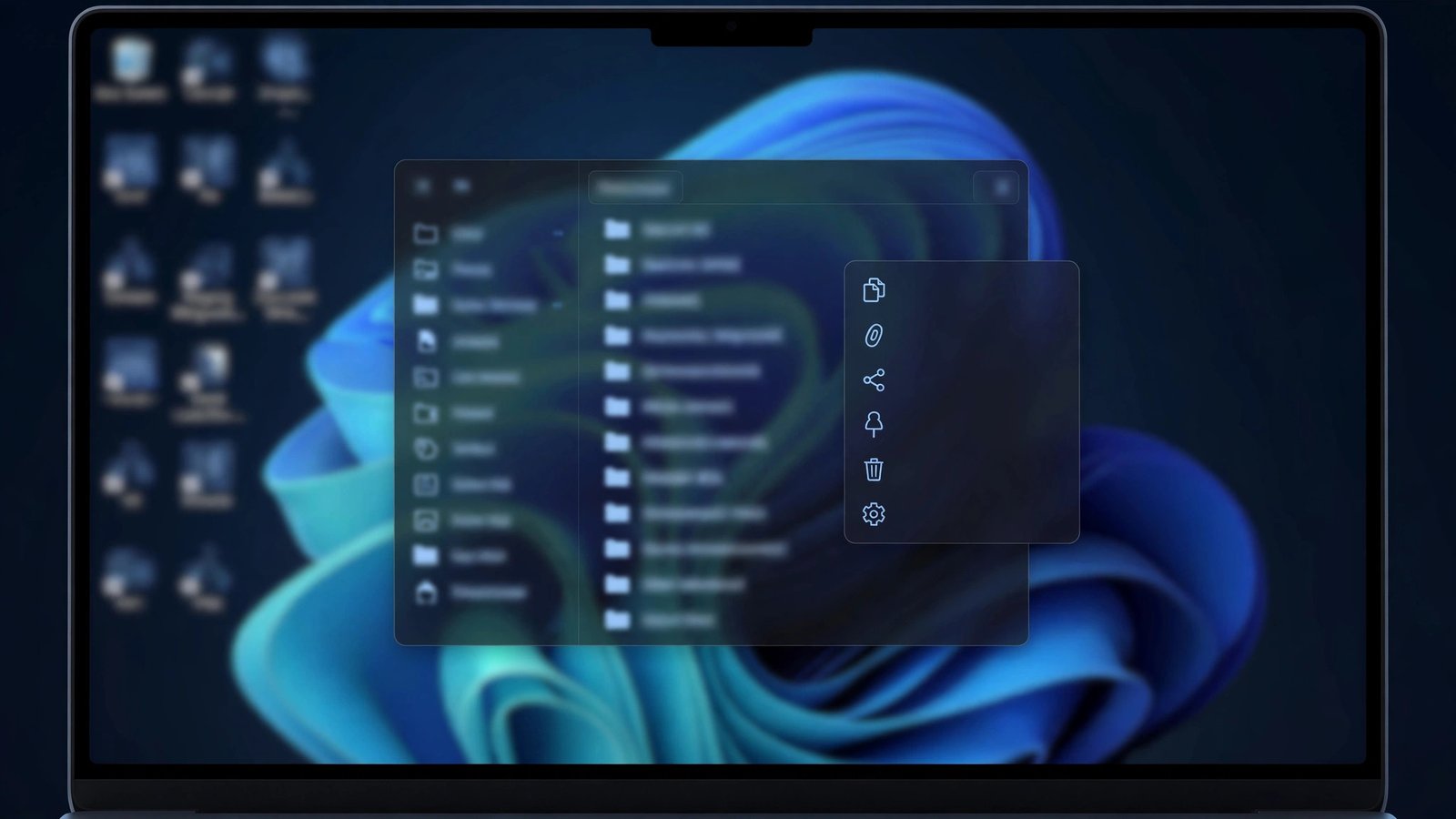
If you only remember one thing from this update, make it this one. The right-click menu — the menu you see every time you right-click a file in File Explorer — is redesigned, and for the first time you can actually customize it from Settings.
This is a bigger deal than it sounds. The Windows 11 right-click menu has annoyed people since Windows 11 launched in 2021. Microsoft replaced the long, familiar Windows 10 menu with a short, icon-heavy one and buried everything else behind a “Show more options” entry. It looked cleaner, but it slowed people down. Power users hated it. Plenty of everyday users did too, even if they could not quite say why their file management felt slower.
KB5132061 does not go back to the old menu. Instead, it makes the new one yours to shape.
How to Customize the Right-Click Menu
The customization lives in Settings, which is new. Here is the path:
- Right-click any file or folder in File Explorer.
- Click Customize menu at the bottom of the menu.
- That opens Settings > Personalization > Context menu.
From that page, you can:
- Turn built-in commands on or off. Commands like Send to, Create shortcut, and Copy as path can each be toggled individually. If you never use Send to, turn it off and it is gone.
- Add Print to the menu. If you print files often, you can put Print right in the main menu instead of digging for it.
- Decide where app extensions live. This is the big one. Third-party apps — your compression tool, your cloud drive, your image editor — can add their own entries to the right-click menu. You can now choose whether each app’s entries sit in the main menu, in a submenu, or are hidden entirely. No more scrolling past six entries from apps you barely use.
- Show actions as text instead of icons. The row of Cut, Copy, Paste, Rename, Delete, and Share icons at the top of the menu can be switched to labeled text buttons. If you have ever clicked the wrong icon because they all blur together, this is for you.
- Move Properties back to the bottom. In the classic Windows 10 menu, Properties sat at the very bottom, and muscle memory dies hard. You can put it back there.
Why the Default Menu Feels Faster
Even if you never touch the customization page, the menu should feel different. The default menu is now around eight items, and it opens instantly. The reason is a change in how extensions load: third-party extensions no longer load when the menu opens. They only load when you actually open their submenu. That sounds like a small engineering detail, but it is the difference between a menu that pops up the moment you click and one that hangs for a beat while it waits on a slow app.
And for the traditionalists: Shift + right-click still brings up the classic full menu, exactly as before. Microsoft has not taken that away, and honestly, I still use it sometimes out of habit.
Cloud Rebuild: Reinstall Windows Without a USB Stick
The second headline feature is Cloud Rebuild, and it solves a problem anyone who has ever fixed a family member’s PC will recognize: reinstalling Windows used to mean finding a USB stick, downloading an installer on a second computer, and hoping you picked the right options. Now you can do it from Settings, with no USB drive at all.
Here is where to find it: Settings > System > Recovery > Rebuild PC. Click it, and your PC restarts into the Windows Recovery Environment (WinRE) and reinstalls Windows 11 using an image and drivers downloaded from Windows Update.
The part that really matters is that it works even when Windows will not boot. If your PC fails to start, you can reach it from the recovery screen: Troubleshoot > Recovery > Uninstall > Cloud Rebuild. That turns a dead PC from a trip to a repair shop — or a panicked call to the one tech-savvy person in the family — into something you can start yourself.
Now the warning, and it is a serious one: Cloud Rebuild erases your local files, apps, accounts, and settings. This is a fresh reinstall, not a repair that keeps your stuff. Back up anything you care about before you touch it — documents, photos, browser bookmarks, the lot. A cloud backup or an external drive both work. Just do not skip this step and assume your files will survive, because they will not.
For most people, Cloud Rebuild is a feature you will hopefully never need. But the day your PC will not boot, you will be glad it is there. It is also genuinely useful if you are handing a PC to someone else and want it wiped clean and fresh.
Your PC Should Feel Faster
Microsoft published a blog post on November 3, 2026, about performance work in recent Windows 11 builds, and KB5132061 carries those gains. The headline numbers:
- On PCs with 8GB of RAM, builds 26300.9818 and later keep up to 2GB more active data in memory. In plain terms, Windows is smarter about what it keeps in RAM instead of swapping it out to your drive, which is much slower.
- Start, Search, right-click, Settings, and File Explorer respond up to 20% faster than they did on January 2026 builds, according to Microsoft’s measurements.
- Widgets load on demand now, which saves around 200MB of memory. If you never open the Widgets board, it no longer sits there eating RAM in the background.
Here is my honest take on numbers like these: take “up to 20% faster” with a grain of salt. Your experience depends on your hardware, and on a fast modern PC you may barely notice. Where you are most likely to feel it is on a budget laptop or an older machine with 8GB of RAM, where every bit of memory headroom counts. The right-click menu speed-up is the most noticeable of the bunch, because it is something you do dozens of times a day and the old delay was genuinely irritating.
Edge Opens Faster, Too
If you use Microsoft Edge, there is a separate speed improvement worth knowing about. With Edge version 150 and later, the browser opens up to 33% faster thanks to what Microsoft calls accelerated app launch.
Thirty-three percent sounds dramatic until you translate it into real life: if Edge used to take three seconds to open, it now takes about two. That is not life-changing, but it is the kind of thing you notice every single morning when you sit down and open your browser.
The Smaller Changes Worth Knowing
Beyond the headliners, KB5132061 includes a batch of smaller improvements. None of these is a reason to update on its own, but together they round out the release:
- Smoother taskbar preview animations. Hovering over a taskbar icon to preview open windows now animates more smoothly. Small, but it makes the desktop feel more polished.
- Phone Link message previews in Start. Hover over the Phone Link section in the Start menu and you can preview recent messages from your phone without opening the app. Handy if your phone is charging in the other room.
- Xbox mode improvements. A new Exit to Desktop option and power buttons make it easier to get in and out of the full-screen Xbox experience on a PC or handheld.
- Magnifier per-monitor zoom levels. If you use Magnifier, you can now set different zoom levels for each monitor. That is a real quality-of-life fix for people with multi-monitor setups and different screen sizes.
- Memory Integrity turned on for more PCs. Memory Integrity is a security feature that protects against certain kinds of attacks. Microsoft is enabling it on more supported PCs with this update. You do not need to do anything — it just shows up.
- Smart App Control toggle bug fixed. There was a bug where the Smart App Control toggle did not behave correctly. It is fixed in this update.
What’s New at a Glance
Here is the whole update in one table, so you can see at a glance what you get and whether it shows up right away or rolls out over time.
| Feature | Who gets it | Now or gradual? |
|---|---|---|
| Customizable right-click menu | 26H2, 25H2, 24H2 Enterprise/Education | Gradual rollout |
| Cloud Rebuild | 26H2, 25H2, 24H2 Enterprise/Education | Gradual rollout |
| Performance gains (RAM, faster Start/Search/Explorer) | 26H2, 25H2, 24H2 Enterprise/Education | With the update |
| Edge up to 33% faster launch | Anyone on Edge 150+ | With Edge update |
| Taskbar preview animations | 26H2, 25H2, 24H2 Enterprise/Education | Gradual rollout |
| Phone Link previews in Start | 26H2, 25H2, 24H2 Enterprise/Education | Gradual rollout |
| Xbox mode Exit to Desktop + power buttons | 26H2, 25H2, 24H2 Enterprise/Education | Gradual rollout |
| Magnifier per-monitor zoom | 26H2, 25H2, 24H2 Enterprise/Education | Gradual rollout |
| Memory Integrity on more PCs | Supported PCs | Gradual rollout |
| Smart App Control toggle fix | 26H2, 25H2, 24H2 Enterprise/Education | With the update |
How to Check Your Version and Install the Update
If you are not sure whether your PC has KB5132061 yet, checking takes about thirty seconds.
Check Your Windows Version
There are two quick ways:
Option 1 — Settings:
1. Open Settings.
2. Go to System > About.
3. Look at the Version and OS build lines. If you see 26H2 with build 26300.9974, 25H2 with 26200.9974, or 24H2 Enterprise/Education with 26100.9974, you have the November update.
Option 2 — winver:
1. Press Windows key + R.
2. Type winver and press Enter.
3. A small window shows your version and build number.
I use winver because it is faster, but Settings > About gives you more detail, including your edition — which matters here, because the edition is what decides whether you get this update at all.
Install the Update
If the update has not installed itself yet:
- Open Settings > Windows Update.
- Click Check for updates.
- If KB5132061 appears, click Download & install.
- Restart when prompted. Save your work first — the restart is not optional.
If It Does Not Show Up
First, do not panic. Microsoft staggers these updates, and your PC may simply not be in the first wave. Wait a few days and check again. Second, check your version — if you are on 24H2 Home or Pro, the update will never appear, because that edition stopped receiving updates on October 13, 2026. That brings us to the decision a lot of readers now face.
Stuck on Windows 11 24H2? Your Decision, Plainly
Windows 11 24H2 Home and Pro reached the end of updates on October 13, 2026. That means no more security updates, no more bug fixes, and no new features — including everything in this article. Your PC will keep working, but every month that passes without a security patch makes it a slightly easier target.
You have three real options:
Option 1: Upgrade to 25H2 or 26H2 (best for most people). If your PC meets the requirements, the upgrade is free and it is delivered through Windows Update. This is the straightforward path, and it is what Microsoft wants you to do. Before you upgrade, back up your files — the same advice as always, because upgrades almost always go fine until the one time they do not. If you are still weighing whether to move to Microsoft’s newest version, our look at the Windows 11 26H2 update and its new features lays out what the latest version brings.
Option 2: Stay on 24H2 and accept the risk. Your PC will not stop working. But without security updates, newly discovered vulnerabilities stay open forever. For a PC you use for banking, email, work, or anything with personal data, it is a bad trade. I would not recommend it, and I would not do it myself.
Option 3: Move to a supported edition or a new PC. If your hardware does not qualify for the newer versions, that is a harder conversation. Enterprise and Education editions of 24H2 are still supported and do get KB5132061, so if you have access to one of those through work or school, that changes the picture. Otherwise, the honest answer is that an unsupported PC is a countdown, and planning a replacement beats being forced into one by a dead machine or a security scare.
One important note: 23H2 Enterprise and Education security updates also ended around the same time as this release, so if you are on 23H2 in a business or school setting, check with your IT admin rather than assuming you are covered.
A Few Honest Caveats Before You Update
No monthly update is entirely trouble-free, and November’s is no exception. A few issues have been reported by users since release, and you should know about them before you click install:
- Install failures with error codes 0x800f0993 and 0x800f0989. Some users report KB5132061 failing to download or install, stopping partway through. Windows Report’s coverage notes Microsoft had not officially acknowledged these failures at the time of writing. Some users reported success after running DISM and System File Checker (DISM /Online /Cleanup-Image /RestoreHealth, then sfc /scannow) and retrying — not guaranteed, but the first thing worth trying.
- Printing problems. Neowin reported that some users and admins saw printing break after the November updates, including documents failing to print through Word and other apps. Microsoft appears to have acknowledged a printing issue affecting documents with images at certain resolutions, per the same reporting.
- Citrix and Sage 50 issues. Some business users reported the Citrix Workspace app refusing to launch and Sage 50 accounting software crashing after installing the November updates, with uninstalling the update restoring normal behavior. Microsoft had not officially acknowledged these as known issues at the time of that reporting.
None of this means you should skip a mandatory security update — the security fixes in it matter, and most PCs install it without any trouble. But it does mean you should back up before installing, and if you rely on printing, Citrix, or Sage 50 for work, it is worth checking with your IT team or waiting a few days to see how the reports develop. If you do hit an install error, the repair steps above are a reasonable first move before anything more drastic.
For context on how Microsoft’s monthly updates work and what last month’s brought, our coverage of October’s Patch Tuesday update is a useful comparison — October’s release was dominated by a zero-day fix, while November’s is more about features.
Frequently Asked Questions
What is KB5132061?
KB5132061 is Microsoft’s November 2026 cumulative update for Windows 11, released on Patch Tuesday, November 10, 2026. It is a mandatory security update that also adds new features, including a customizable right-click menu, Cloud Rebuild, and performance improvements. It takes 26H2 to build 26300.9974, 25H2 to 26200.9974, and 24H2 Enterprise and Education to 26100.9974.
How do I customize the right-click menu in Windows 11?
Right-click any file in File Explorer, click Customize menu, and you will land on Settings > Personalization > Context menu. From there you can toggle built-in commands like Send to and Copy as path, add Print, choose whether each app’s entries appear in the main menu, a submenu, or are hidden, switch Cut, Copy, Paste, Rename, Delete, and Share from icons to text, and move Properties back to the bottom of the menu.
What is Cloud Rebuild in Windows 11?
Cloud Rebuild is a new way to reinstall Windows 11 without a USB drive. Go to Settings > System > Recovery > Rebuild PC, and your computer restarts into the recovery environment and reinstalls Windows from an image and drivers downloaded from Windows Update. It also works when Windows will not boot, via Troubleshoot > Recovery > Uninstall > Cloud Rebuild. Warning: it erases your local files, apps, accounts, and settings, so back up first.
Why don’t I see the new features after installing KB5132061?
Microsoft rolls features out gradually, so some changes may not appear on your PC right away even after the update is installed. Give it a few days or weeks. If you are on Windows 11 24H2 Home or Pro, the features will never appear — that edition stopped receiving updates on October 13, 2026, and you need to upgrade to 25H2 or 26H2 to get them.
Does KB5132061 make Windows 11 faster?
According to Microsoft’s November 3, 2026 blog post, builds 26300.9818 and later keep up to 2GB more active data in RAM on 8GB PCs, and Start, Search, right-click, Settings, and File Explorer respond up to 20% faster than January 2026 builds. Widgets also load on demand now, saving about 200MB of memory. The gains are most noticeable on budget laptops and older machines with 8GB of RAM.
Should I install KB5132061 if I use Sage 50, Citrix, or rely on printing?
Yes, but with your eyes open. The security fixes in a mandatory cumulative update matter, and most PCs install it without problems. But there have been user reports of printing issues, Citrix Workspace failing to launch, and Sage 50 crashing after the November updates. If any of those are critical to your work, back up first, and consider checking with your IT team or waiting a few days to see whether Microsoft issues a fix.
Sources: Microsoft’s KB5132061 release notes; Windows Latest — “I tested Windows 11 November 2026 update”; Notebookcheck — “Windows 11 November Patch Tuesday: Microsoft tests unified app updates”. Checked November 23, 2026.