
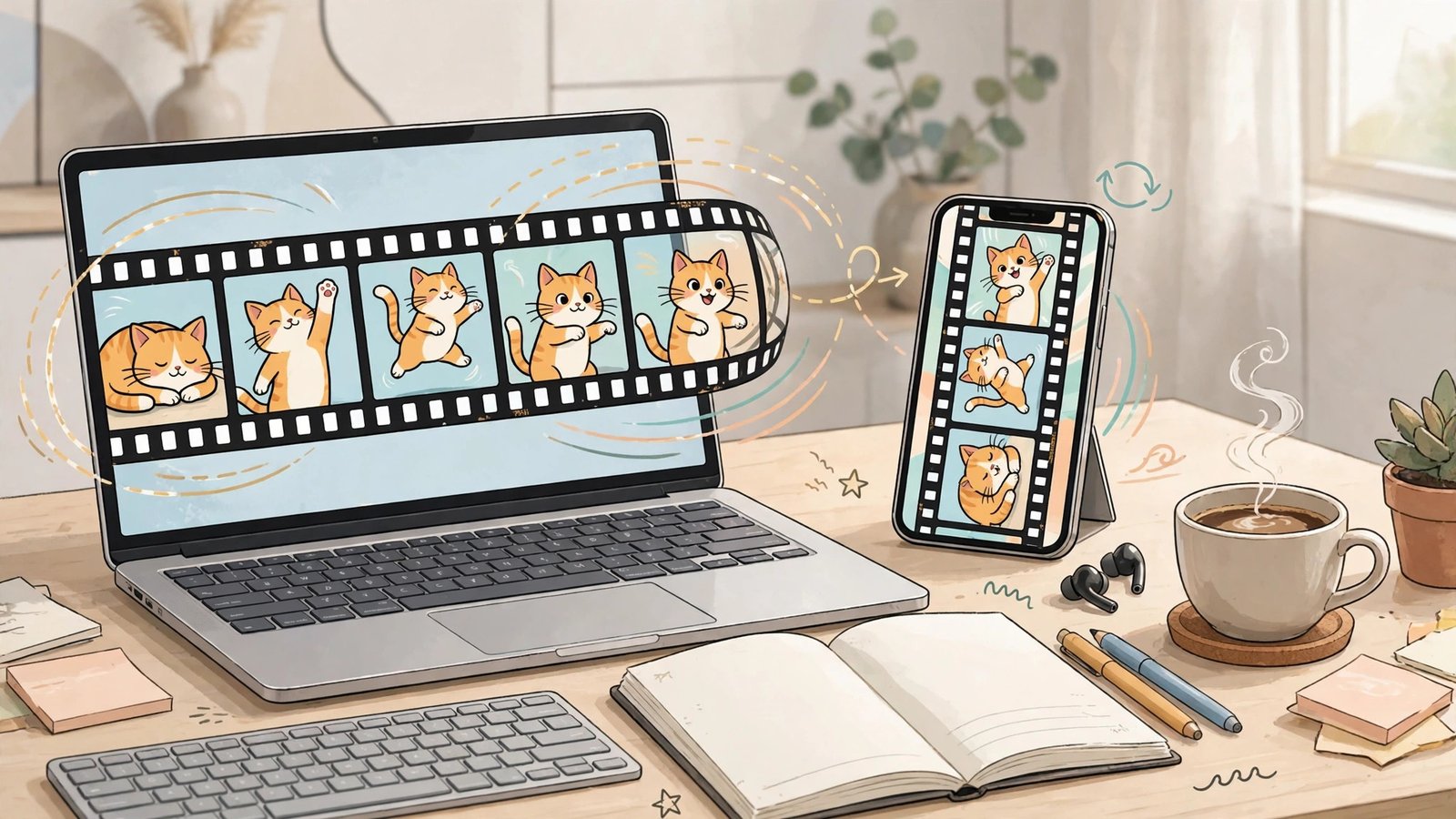
ChatGPT can now make animated GIFs. On November 4, 2026, OpenAI rolled out Images 2.6, a new image model that turns a text prompt or an uploaded photo into a looping animation inside ChatGPT and Codex, with controls to change the playback speed and edit individual frames. If you make Reels, ads, product posts, or email content, that matters — not because a GIF is a new format, but because the loop you used to build in three tools can now start and get fixed in one chat.
I am going to be straight with you about what is solid and what is still fuzzy. The GIF feature itself is well reported across several outlets citing The Verge, and the speed and frame controls show up consistently. But OpenAI has not published a full standalone announcement page for Images 2.6 that I could point you to, the rollout is gradual, and no official limits on length, frame count, or resolution have been confirmed yet. So treat this guide as a practical playbook built on the November 4 reporting, with the unknowns labeled as unknowns. That honesty will save you more time than a confident list of specs that turns out to be wrong.
What Images 2.6 actually adds
Before this update, ChatGPT could not produce a finished GIF in a single step. You could ask it to draw frames, or stitch frames together with code, but the animation was a workaround you assembled yourself. Images 2.6 changes the starting point: you describe the motion or upload a photo, and ChatGPT returns a looping animation you can then adjust.
Here is what the November 4 coverage agrees on:
- Two starting points. A plain text prompt (“make a gif of a cat dancing”) or an uploaded photo you want to bring to life.
- Speed control. Android Authority reports playback speed options from 0.5x to 2x. That is the difference between a frantic loop and a calm product demo.
- Frame-by-frame editing. You can look at individual frames, fix the one frame where a hand melts or a logo warps, and keep the rest.
- Sharing from the chat. The finished GIF can be shared directly, rather than exported through a separate editor first.
- Faster still images too. OpenAI says Images 2.6 also speeds up regular image generation in ChatGPT, though it has not published a specific percentage for this model. Do not confuse that with the 50% figure quoted for Images 2.5, which was a different release in September.
- Rollout scope. The model is rolling out to all ChatGPT and Codex users on web, desktop, and mobile, across tiers. “Rolling out” is doing real work in that sentence: one outlet that tried the feature on November 4 found it was not yet available on its test accounts. If you do not see it yet, you are not doing anything wrong. Check again, and keep your old workflow running in the meantime.
OpenAI also says users now generate more than 4 billion images a week through ChatGPT and its API, up from 3 billion in September. That number tells you why OpenAI is pushing animation inside the chat window: image generation is already a daily habit for millions of people, and a loop is the smallest possible step from a still image toward video.
How to make a GIF in ChatGPT, step by step
1. Start with the motion, not the picture
A good GIF prompt describes one clear action, not a whole scene. “A ceramic mug steams on a desk, steam curling up, loop seamlessly” will give you a cleaner result than “a cozy morning routine with coffee, a cat, rain on the window, and a person reading.” Every extra moving element is another chance for the model to change something between frames.
Write your prompt in three parts: the subject, the single motion, and the loop instruction. For example: “Product photo of a red water bottle on a white background. The cap twists open and a splash of water arcs out, then returns to the start. Smooth seamless loop.” If you are animating your own photo, upload it first and say what should move and what must stay still: “Animate only the steam. Keep the mug, the table, and the label exactly as they are.”
2. Generate, then watch the loop twice
Watch the first version all the way through twice. The first watch tells you whether the idea works. The second watch tells you where the loop breaks — the jump between the last frame and the first, a face that drifts, a hand that appears and vanishes. GIFs fail at the seam more than anywhere else, so check the seam before you check anything else.
3. Fix the speed before you fix the frames
Speed is the fastest fix in the whole workflow. A loop that looks jittery at normal speed often looks intentional at 0.5x, and a slow product spin can feel alive at 1.5x or 2x. Android Authority reports the speed range as 0.5x to 2x, so test both ends before you start redrawing frames. Changing speed costs you seconds. Rebuilding frames costs you minutes.
4. Edit the broken frame, not the whole GIF
This is the part that used to require a separate editor. Open the frame view, find the frame where something goes wrong — a warped logo, an extra finger, a background object that teleports — and ask for a fix to that frame only. Be specific: “In frame 6, the label text is distorted. Redraw frame 6 so the label matches frame 5 exactly.” Vague requests like “make it better” tend to change frames that were already fine.
5. Export with the destination in mind
A GIF that looks perfect in ChatGPT can still fail on the platform where you post it. Instagram does not accept raw .gif uploads for Feed or Reels posts — it treats a .gif as a still image showing only the first frame — so you convert to MP4 before posting there. Facebook, by contrast, will publish a GIF posted on its own as an animated post. Email clients vary. Always export and test on the actual destination, not just in the chat window. I cover the platform-by-platform specs below.
A worked example: turning a product photo into a 9-frame loop
You do not need a studio to see how this workflow pays off. Imagine you sell a candle, and you have one clean product photo. Here is a prompt structure you can adapt, frame by frame in your head before you ever type it:
- Upload the product photo and ask ChatGPT to keep the jar, label, and background identical in every frame.
- Ask for one motion only: the flame flickers and a thin wisp of smoke curls up.
- Ask for a seamless loop, so the last frame flows back into the first without a visible jump.
- Once you have the loop, slow it to 0.5x if the flicker feels nervous, or leave it at normal speed if it already reads as calm.
- Check the label in every frame. If one frame warps the text, fix that frame alone.
That is nine frames doing one job: making a still product photo feel alive in a feed where still photos get scrolled past. The same structure works for a skincare serum (one drop falling), a coffee bag (steam rising), or a pair of sneakers (a slow 360-degree turn, though a full turn is harder — start with a small rotation, not a full spin, and see how clean the seam is).
The lesson here is restraint. One motion, one subject, one loop. Creators who ask for three motions in one GIF usually spend their editing time fixing the two motions they did not need.
GIF specs that actually work, platform by platform
This table is the part most launch coverage skips, and it is where most GIFs die. A file that is technically a GIF is not automatically a postable GIF everywhere.
| Where you post | What actually happens | What to do |
|---|---|---|
| Facebook post | A GIF posted on its own publishes animated. A GIF posted alongside other images publishes as a still of its first frame. | Post the GIF alone if you want motion. |
| Instagram Feed or Reels | Raw .gif uploads are not supported as animation; the post shows the first frame as a still. | Convert to MP4 (H.264), 1080px on the shortest side, and loop it to at least 4 seconds so it clears minimum-length rules. |
| Instagram Stories | Animated stickers come from the built-in GIPHY search, not from your own GIF upload. | Use the MP4 route for a full-screen Story, or GIPHY stickers for decoration. |
| X (Twitter) | GIFs upload and loop natively, with file-size limits that punish long, high-resolution loops. | Keep loops short and under 15MB where possible; trim frames before you raise resolution. |
| Email and newsletters | Most email clients animate GIFs, but some (notably older Outlook versions) show only the first frame. | Design the first frame as a complete message on its own, so the email still works if the animation never plays. |
| Your own website or shop | GIFs work, but large GIF files slow page loading and hurt the exact pages you want to rank. | Keep shop GIFs small, or convert to a short looping video, which compresses far better. |
Two practical rules fall out of that table. First, always design the first frame as if it were a still image, because on several platforms that is exactly what people will see. Second, file size matters more than resolution for a GIF. A short 480p loop under 8MB — the size range GIPHY recommends for sources — will load instantly and loop smoothly, while a long 1080p GIF will stutter, fail to upload, or eat your mobile data budget. If your GIF is over 15MB, you almost certainly need fewer frames, a shorter loop, or a conversion to MP4.
When a GIF beats a still — and when it loses to video
GIFs are not a replacement for video. They are a middle format, and they win in a specific set of jobs:
- A single action you want to repeat. Steam rising, a page turning, a color changing, a before-and-after blink. If the idea fits in 2 to 4 seconds, a GIF is perfect.
- A reaction or a punchline. Short, silent, loopable humor is still the GIF’s home turf.
- A product detail that a still cannot show. A clasp closing, a zipper running, a texture catching light.
- An ad creative that needs to autoplay silently. In feeds where sound is off by default, a silent loop can outperform a video that depends on audio.
A GIF loses when the idea needs sound, narration, a sequence of steps, or more than a few seconds of motion. A tutorial with five steps is a video, not a GIF. A testimonial is a video. A product launch story is a video. If you find yourself asking ChatGPT for a 20-second GIF with a plot, stop — you are describing a short video and forcing it into the wrong format.
| Job | Best format | Why |
|---|---|---|
| One product motion | GIF | Loops silently, loads fast, repeats the selling point |
| Reaction or meme | GIF | Instant, shareable, no audio needed |
| How-to with steps | Short video | Needs sequence and captions |
| Story or testimonial | Short video | Needs sound and time |
| Hero image on a product page | Still image or short video | A GIF adds page weight for little gain |
Flare vs. Sunburst: what developers actually get
On the developer side, OpenAI is adding two API models under Images 2.6: GPT-Image-2.6 Flare, tuned for speed, and GPT-Image-2.6 Sunburst, tuned for higher quality. The names tell you the trade-off. Flare is the model you reach for when you need fast drafts, interactive editing, or a lot of variations. Sunburst is the one for final-quality output where consistency and detail matter more than speed.
Here is the honest caveat, and it matters if you build tools for clients: as of the November 4 coverage, OpenAI’s public API pricing page still listed only the 2.5 models, so no official 2.6 pricing had been published. One trend brief also flagged that the API GIF flag was still disabled or unpublished in the docs. So do not quote a client a per-image price for Images 2.6 yet, and do not promise an API workflow that outputs GIFs directly until OpenAI’s own docs confirm it. Build your prototype against the ChatGPT workflow, and treat the API side as “coming, pricing unknown” until the docs catch up.
For a small team, the practical split is simple. Use Flare-style speed for brainstorming: ten rough loops, pick one. Use Sunburst-style quality for the one loop that actually ships. Paying for top quality on every draft is how a fun new tool quietly becomes a line item you regret.
Five GIF ideas you can make this week
If you want to test the feature with a purpose, rather than just playing with a dancing cat, try one of these. Each one is a real content job, not a demo.
- The product loop. One motion, one product, seamless loop. Best for shop pages, Facebook posts, and email headers.
- The before-and-after blink. Two states, alternating slowly. A room before and after styling, a design draft versus the final version, a messy desk versus a tidy one. Slow the speed to 0.5x so viewers can actually see both states.
- The announcement countdown. A number or a date that pulses or flips. Works for sales, launches, and event reminders, and it is easy to reuse by changing the number.
- The tutorial micro-step. One step of a process, looped: folding a box, tying a knot, applying a filter. Not the whole tutorial — just the step people rewatch.
- The reaction clip for community posts. A short, funny loop for replies and community tabs. Keep it brand-safe and original; do not animate someone else’s photo or artwork without permission.
For each one, write the prompt, generate, check the seam, fix the speed, fix the broken frame, and then test it on the platform where it will live. That six-step habit will matter more than any single prompt trick.
What to watch out for
The rollout is gradual. If GIF generation is not in your account yet, that matches what at least one outlet found on launch day. Do not reinstall the app five times or buy a new plan in the hope of unlocking it faster. Wait, and keep your existing GIF tools (Ezgif, Adobe Express, or your video editor’s GIF export) in place.
No official limits are published yet. Maximum length, frame count, resolution, and per-plan quotas are all unconfirmed in the coverage I checked. That means you should test your longest loop early, before you promise a client a 10-second GIF at full resolution.
Character consistency is still the hard part. OpenAI’s dancing-cat demo reportedly keeps the character recognizable across frames, and one assessment suggested earlier models would have drifted more. But “recognizable” is not “identical.” Faces, hands, logos, and text are still the first things to warp. Check them frame by frame, every time.
Rights still apply. Making a GIF of a celebrity, a branded character, or someone else’s artwork does not become safe because an AI made it. If you would not post the still image without permission, do not post the GIF either. For client work, animate your own photos and your own products first.
Do not confuse Images 2.6 with Images 2.5. The September release (2.5) was about sharper stills, more precise editing, and faster generation. This release (2.6) adds animation and frame editing on top of that. If a guide you are reading talks only about still-image editing, it is describing 2.5, not 2.6.
The bottom line for creators
Images 2.6 does not make you a motion designer. It removes the setup cost of making a simple loop, which is a different and more useful thing. The creators who will get value from it this month are the ones with a clear, small job — one product, one motion, one loop — and the discipline to check the seam, fix the speed, and convert to MP4 where the platform demands it.
Start with one product photo you already own. Make one loop. Post it where your audience actually is, and watch whether it earns more saves, shares, or clicks than the still version of the same photo. That single comparison will tell you more about whether GIFs belong in your content mix than any launch-day hype. And if the feature has not reached your account yet, that test is still worth running the day it does — the playbook above will be waiting.
Frequently Asked Questions
Can ChatGPT really make GIFs now, or is this another workaround?
Yes, with Images 2.6 ChatGPT can generate an animated GIF from a text prompt or an uploaded photo in a single step, then let you change the speed and edit individual frames. Before this update, GIFs required stitching still frames together yourself or with code. The rollout is gradual, so the feature may not be in every account on day one.
How do I change the speed of a GIF in ChatGPT?
After generation, use the playback speed control reported in the launch coverage, which ranges from 0.5x to 2x. Slow the loop down if the motion feels jittery, or speed it up if a slow motion feels lifeless. Adjust speed before you start editing individual frames, since it is the fastest fix.
Can I edit a single frame of a ChatGPT GIF?
Yes. Images 2.6 includes frame-by-frame viewing and editing, so you can fix the one frame where a logo warps or a hand distorts without regenerating the whole animation. Ask for a fix to that specific frame, and reference the neighboring frame it should match.
Why does my GIF show as a still image on Instagram?
Instagram does not support raw .gif uploads for Feed or Reels posts. It treats the file as a still image and shows only the first frame. Convert the GIF to an MP4 video (H.264, 1080px on the shortest side) and loop it to at least 4 seconds before uploading, and it will play as animation.
What are GPT-Image-2.6 Flare and Sunburst?
They are the two new API models under Images 2.6. Flare is tuned for speed and interactive editing, while Sunburst targets higher-quality output and consistency. As of November 4, official API pricing for these models had not been published, so do not quote per-image prices for them yet.
Is ChatGPT Images 2.6 available on the free plan?
The rollout covers all ChatGPT and Codex users on web, desktop, and mobile, across tiers, according to the launch coverage. But availability is gradual, and no per-plan quotas or limits have been confirmed, so if you do not see GIF generation yet, check again rather than assuming your plan excludes it.
For more on the previous image model, see ChatGPT Images 2.5 precise editing and ChatGPT visual ads for business. For the launch reporting itself, see Unite.AI’s Images 2.6 coverage and Android Authority’s speed-control detail.