
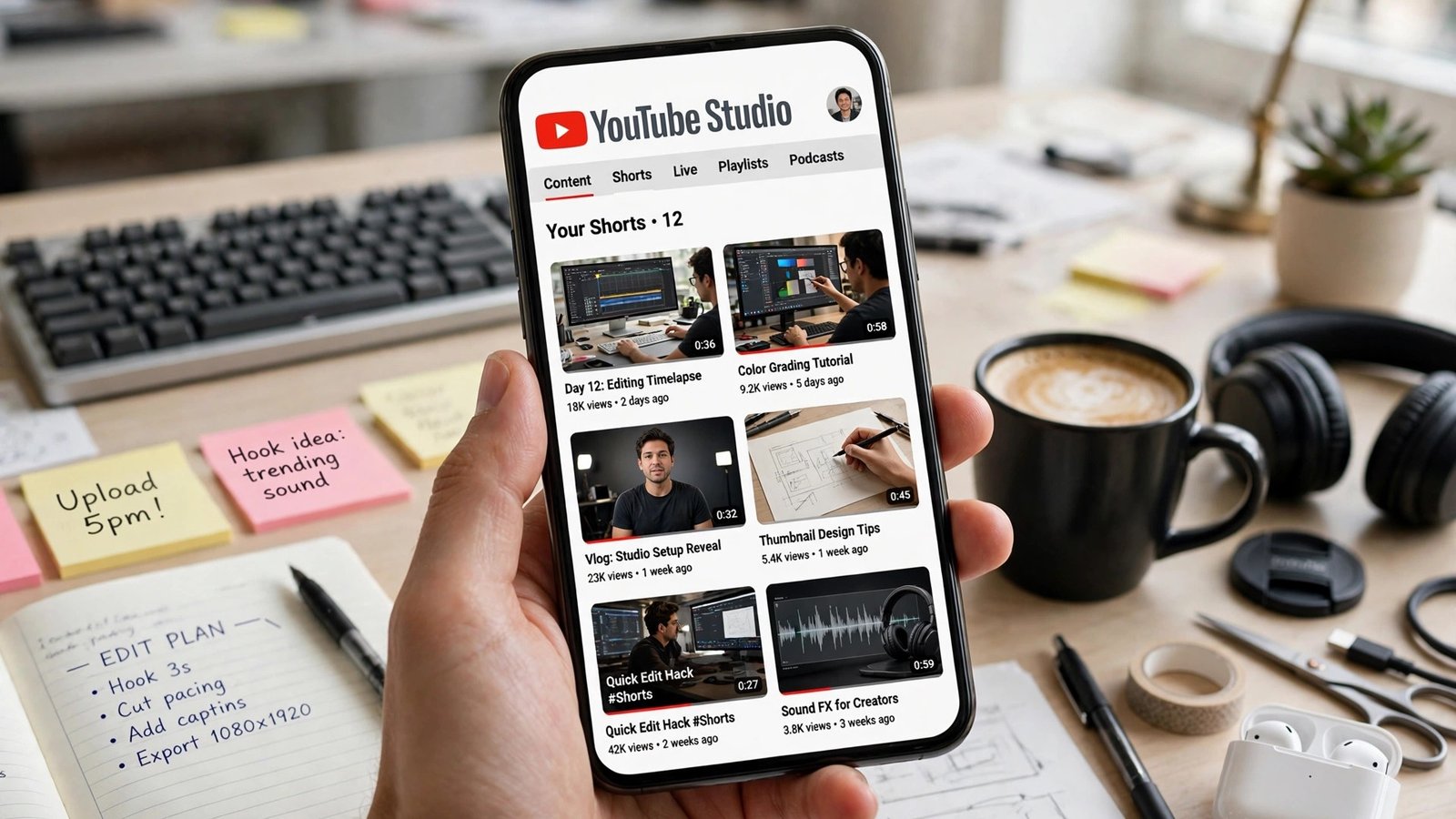
YouTube opened custom Shorts thumbnails to every creator on November 23, 2026. If your channel isn’t in the YouTube Partner Program yet, you can now upload your own thumbnail image for any Short — on desktop and on mobile — instead of accepting whatever frame YouTube auto-picks. The one catch: your account has to be verified by phone before you can upload a custom image.
That sounds like a small change. It isn’t, if you know where Shorts thumbnails actually show up. They do nothing inside the Shorts feed, where the video starts playing the moment it appears. They do a lot of work everywhere else: your channel page, search results, the homepage, and the Shorts tab. For a small channel, those are the places where a stranger decides whether to tap — and until November 23, only monetized channels got to control that first impression.
This is the full walkthrough: what changed and when, the exact steps on desktop and mobile, the specs YouTube asks for, what makes a good Shorts thumbnail (it’s not a shrunken long-form thumbnail), and which of your Shorts are actually worth the ten minutes it takes to fix them. There’s also a deadline hiding underneath all of this — February 1, 2027 — that makes this week the right time to do it.
What changed on November 23 — and the 122 days before it
YouTube CEO Neal Mohan announced the change on X on November 23, 2026, in a post that read: “You loved custom Shorts thumbnails — now every creator can use them on desktop and mobile! Tap the pencil icon on any Short in @YouTube Studio to upload yours.” Social Media Today reported the expansion the next day, and TubeFilter covered it on November 25. You can read the Social Media Today report for the full announcement details.
The feature itself isn’t new. YouTube announced custom Shorts thumbnails on its official blog on July 24, 2026 — but only for channels in the YouTube Partner Program. Mohan called it “one of the most requested features” at the time. The rollout to Partner channels began July 25. Non-Partner creators waited 122 days between that announcement and the November 23 expansion.
| Date | What happened |
|---|---|
| July 24, 2026 | YouTube announces custom Shorts thumbnails — Partner Program channels only |
| July 25, 2026 | Rollout to Partner channels begins on desktop |
| September 30, 2026 | YouTube Creators posts a step-by-step carousel; comments are full of creators asking when mobile support arrives |
| November 23, 2026 | Neal Mohan announces the feature is open to every creator, on desktop and mobile |
| November 24, 2026 | Social Media Today confirms the expansion |
That 122-day gap matters for how you should think about this. For four months, the creators who most needed a packaging advantage — small channels fighting for their first thousand subscribers — were the ones locked out of it. The channels that already had audiences got the tool first. That’s fixed now, and the creators who move first get the most out of it, because most small channels still haven’t touched their back catalogs.
YouTube’s head of editorial, Rene Ritchie, added three practical details when the expansion landed, as quoted by Social Media Today: you can upload a thumbnail at the upload stage on mobile or desktop, you can change it after a Short is already published, and if you don’t want to design one, you can pick from suggested frames YouTube pulls from the video itself. YouTube’s AI assistant, Ask Studio, can also brainstorm thumbnail ideas from your video’s transcript and themes.
Where a Shorts thumbnail actually shows up (and where it doesn’t)
Here’s the honest box most coverage skips: a custom Shorts thumbnail changes nothing inside the Shorts feed. In the feed, the video autoplays the instant it appears on screen. Nobody sees your thumbnail, and nobody taps it. The first frame and the first two seconds of the video do all the work there.
Your thumbnail earns its keep in the places around the feed. Here’s the map:
| Surface | Does your thumbnail show? | Why it matters |
|---|---|---|
| Shorts feed (swipe view) | No — video autoplays | Your hook and first frame matter here, not the thumbnail |
| Channel page, Shorts tab | Yes | This is your storefront; visitors scan a grid and pick |
| Channel home page | Yes | Returning viewers and new visitors browse here |
| YouTube search results | Yes | A Short can surface in search — the thumbnail is the pitch |
| YouTube homepage | Yes | Shorts shelves on the homepage show thumbnails |
| Watch history / playlists | Yes | People re-find your Shorts through these lists |
That table is the whole strategy in miniature. If most of your Shorts views come from the feed — and for most creators, they do — a custom thumbnail won’t move those numbers. If a meaningful share comes from your channel page, search, or the homepage, it will. That distinction decides which Shorts deserve your time, and I’ll show you how to check your own split in a minute.
The vidIQ team made the same point back in August, when the feature was still Partner-only. In a walkthrough posted to Threads, they showed the Studio desktop flow, noted that the suggested-frame option only gives you three automatic choices, and advised creators to update their back catalogs — but only if a significant portion of traffic comes from sources outside the Shorts feed. “It’s not mandatory unless a significant portion of traffic comes from sources outside the feed,” was the gist. That advice is still right, and now it applies to everyone.
How to add a custom thumbnail on a computer
These steps come straight from YouTube’s own Help Center page, “Add custom thumbnails on YouTube”, and they cover both a new upload and a Short that’s already live.
- Sign in to YouTube Studio.
- From the left menu, select Content, then the Shorts tab at the top.
- Find the Short you want to edit and click the pencil (edit) icon.
- Below “Thumbnail,” click Upload file and choose an image from your device.
- Click Save.
YouTube notes that it may take time for your thumbnail change to appear, so don’t panic if the old frame is still showing an hour later. If you’re publishing a new Short, you can set the thumbnail during the upload flow instead of editing afterwards — the option appears at the upload stage.
If the upload option is missing, check one thing first: your account verification. YouTube’s Help Center says you can upload your own thumbnail “if your account is verified,” while the suggested-frame options are available to everyone. Verification is a one-time phone check at youtube.com/verify, and it unlocks several other features too, so it’s worth doing even if you never upload a custom thumbnail.
One more limit worth knowing before you plan a bulk update: YouTube caps how many custom thumbnails a channel can upload per day. If you hit the error “Daily custom thumbnail limit reached,” wait 24 hours and try again. YouTube doesn’t publish the exact number, so if you’re updating a back catalog, do your highest-traffic Shorts first and spread the rest over a few days.
How to do it on mobile
The November 23 announcement specifically added mobile, which was the gap creators kept asking about. In the comments on YouTube Creators’ September 30 tutorial post, the recurring question was mobile support — asked over and over without an official answer at the time. That’s now resolved.
In the YouTube Studio app, the path is:
- Open the YouTube Studio app and tap Content in the bottom menu.
- Select the Short you want to edit.
- Tap Edit, then Edit thumbnail.
- Tap Upload, then Select to choose your image, then Update and Upload Short to save.
If you’re publishing a new Short from your phone, you can set the thumbnail during upload instead. Menu names can differ slightly while the rollout reaches every account, so if a button isn’t where you expect it, check that your Studio app is updated — and that your channel is verified, since that’s the same requirement on mobile.
The specs that matter
YouTube’s Help Center gives clear recommendations for Shorts thumbnails, and they’re different from long-form specs in one important way: everything is vertical.
| Spec | What YouTube asks for |
|---|---|
| Aspect ratio | 9:16 (vertical) |
| Recommended resolution | 2160 x 3840 pixels |
| Minimum height | 640 pixels |
| Format | JPG or PNG |
| Maximum size (desktop) | 50 MB |
| Account requirement | Verified account to upload a custom image |
A few things to notice in that table. First, 2160 x 3840 is the recommended size, but 640 pixels tall is the floor — a 1080 x 1920 export from any phone editor clears it comfortably, and that’s what most creators will actually use. Second, the 9:16 ratio is a recommendation, not a hard wall; YouTube will crop what you give it, so export at 9:16 and you control the crop instead of leaving it to the platform. Third, all custom thumbnails must follow YouTube’s Community Guidelines — a rejected thumbnail can earn a strike, so keep it honest and keep it representative of the video.
There’s also a subtle catch from YouTube’s own community pages: on some surfaces, vertical videos with 16:9 custom thumbnails get replaced by an auto-generated 4:5 thumbnail. That’s another reason to export your Shorts thumbnails at 9:16 from the start.
What makes a good Shorts thumbnail
A good Shorts thumbnail is not a long-form thumbnail turned sideways. Long-form thumbnails compete in a grid of wide rectangles where viewers compare a dozen options at once. Shorts thumbnails compete in a vertical grid on a channel page, or as a single small rectangle next to a search result — and the person looking at them is deciding in about a second.
Four rules that actually work:
One face, one idea, three words max. The thumbnails that perform on channel pages have a single clear subject — usually a face with a readable expression — and at most three words of large text. Your Short is 60 seconds long; the thumbnail should promise one thing, not summarize the whole video. If you can’t read the text when the image is the size of a postage stamp on your phone, the text is too small.
Contrast beats detail. A Shorts thumbnail is often viewed at a few hundred pixels tall. Fine detail disappears. What survives is contrast: a bright subject against a dark background, or a bold color block behind the text. Test every thumbnail by shrinking it to the size of your thumbnail fingernail — if you can’t tell what it is, start over.
Don’t repeat the title. Your Short’s title already sits next to the thumbnail in most surfaces. Using the same words in the image wastes the space. Use the thumbnail to add information the title doesn’t carry — the reaction, the result, the before-and-after — and let the title do the rest.
Make it a true frame, not clickbait. YouTube’s own guidance says thumbnails must follow Community Guidelines, and misleading thumbnails erode the one thing a small channel can’t buy back: trust. A thumbnail that promises something the Short doesn’t deliver might win one tap and lose a subscriber. The channels that grow on Shorts are the ones whose thumbnails set an expectation the video actually meets.
If designing from scratch feels like a chore, YouTube’s Ask Studio can generate thumbnail suggestions from your video’s transcript and themes — it’s built into the publishing workflow. It’s a decent starting point for creators who don’t have a design tool open, though you’ll still want to adjust the text and crop yourself. Canva’s free tier also exports 1080 x 1920, which is the practical size most creators use.
Which of your Shorts are worth the ten minutes
Don’t update all of them. That’s the mistake the Partner-only rollout tempted people into — hours of thumbnail work on Shorts that get 98% of their views from the feed, where the thumbnail never appears.
Do this instead. Open YouTube Studio, go to Analytics, then pick your top 10 Shorts by views from the last 90 days. For each one, check its traffic sources. You’re looking for Shorts where a real share of views comes from channel pages, search, browse features, or suggested videos — the surfaces where the thumbnail shows. Those are your priority list. A Short that gets 80% of its views from the Shorts feed doesn’t need a custom thumbnail; a Short that gets 30% from your channel page does.
Then work the list in this order:
- Your most-viewed Shorts with channel-page traffic. These are the ones strangers actually browse to. A clean thumbnail here is worth more than ten thumbnails on feed-only Shorts.
- Evergreen Shorts that still get search traffic. A how-to or explainer Short that ranks in search keeps earning views for months. Its thumbnail is a permanent ad.
- The Shorts you link to from elsewhere. If you pin a Short, link it in a community post, or send people to it from a long-form video, its thumbnail is the first thing they see.
- Your newest Shorts, going forward. Set the thumbnail at upload time — it takes thirty seconds when the video is fresh, and it becomes a habit instead of a backlog.
Skip the rest. A Short from eight months ago with 400 views, all from the feed, will not be rescued by a thumbnail. Your time is better spent making the next Short good.
The February 1, 2027 reason to do this now
There’s a deadline underneath this feature that makes this week the right time to fix your Shorts packaging. YouTube’s Partner Program thresholds double on February 1, 2027: the watch-hours bar rises to 8,000 hours and the Shorts bar rises to 20 million views, and creators must accept the new terms in YouTube Studio by January 31, 2027. The site’s earlier piece on the February 2027 monetization changes has the full breakdown.
What that means in practice is simple: the old, lower bar is still in force for about two more months. Every subscriber and every view you earn before February 1 counts under the easier rules. Your channel page is where a first-time viewer decides whether to subscribe — and a grid of auto-picked mid-blink frames doesn’t sell anything. A clean set of thumbnails on your best Shorts is one of the cheapest conversion improvements a small channel can make before the bar moves.
It also works the other way. If you’re already in the Partner Program, your Shorts earnings depend on the same discovery surfaces. The real Shorts pay rates show how small the per-view payout is, which means volume matters — and volume comes from people tapping, not from people swiping past.
What YouTube hasn’t shipped yet
The feature isn’t finished. YouTube’s July community update said that in the coming months it would test and launch the ability to edit your Shorts thumbnail frame after upload, plus the option to add text and filters to thumbnails directly. Neither has a firm date, and the November expansion didn’t mention them — so don’t plan around them yet. For now, if you want text or a filter on a Shorts thumbnail, add it in your image editor before uploading.
The other thing to watch is whether YouTube ever brings thumbnails into the feed itself. Right now, the feed is the one place thumbnails don’t matter, and YouTube has shown no sign of changing that — the feed’s whole design is autoplay. If that ever changes, this advice flips overnight. Until then, spend your thumbnail effort on the storefront, not the feed.
And a final note on expectations: a custom thumbnail is a packaging upgrade, not a growth hack. It won’t fix a Short with a weak hook, it won’t rescue a video the algorithm has already buried, and it won’t substitute for posting consistently. What it does is make sure that when someone does find your work — on your channel page, in search, on the homepage — the first thing they see is something you chose, not a random frame from second three of your video. For a small channel, that’s worth ten minutes per Short on the ten Shorts that matter most.
Frequently Asked Questions
Can any creator add a custom thumbnail to a Short now?
Yes. As of November 23, 2026, every creator can upload a custom thumbnail for a Short on desktop and mobile. Before that date, the feature was limited to YouTube Partner Program channels. The only requirement is a verified account — verify once by phone at youtube.com/verify and the upload option appears.
What size should a YouTube Shorts thumbnail be?
YouTube recommends a 9:16 vertical image at 2160 x 3840 pixels, with a minimum height of 640 pixels, in JPG or PNG format. In practice, a 1080 x 1920 export from your phone editor clears the minimum easily and looks sharp on every surface. Keep the file under 50 MB on desktop.
Do Shorts thumbnails show in the Shorts feed?
No. In the Shorts feed, the video starts playing automatically, so viewers never see your thumbnail there. Thumbnails appear on your channel page, your Shorts tab, search results, the homepage, watch history, and playlists. That’s why the thumbnail matters most for Shorts that earn views outside the feed.
Can I change a Shorts thumbnail after publishing?
Yes. In YouTube Studio, go to Content, open the Shorts tab, click the pencil icon on the Short, and upload a new image under Thumbnail. You can also pick one of the suggested frames YouTube generates from the video. YouTube notes it may take time for the change to appear.
Why can’t I upload a custom thumbnail?
The most common reason is an unverified account — YouTube only lets verified accounts upload custom thumbnails. Verify your channel by phone at youtube.com/verify. The other common reason is the daily custom thumbnail limit: if you see “Daily custom thumbnail limit reached,” wait 24 hours and try again. Also check that your Studio app is updated if the option is missing on mobile.
Is it worth updating old Shorts with custom thumbnails?
Only the ones that earn views outside the Shorts feed. Check Analytics for your top Shorts and prioritize ones with real traffic from channel pages, search, or browse features. A Short that gets nearly all its views from the feed won’t benefit, since the thumbnail never appears there. Focus on your ten best-performing Shorts and set thumbnails at upload time for new ones.